
From zero to bookings on your phone, in a few steps
You don't need to be good with computers, and you don't need to learn everything at once. Follow these 6 steps. Then customers can book you online, and new appointments come straight to your phone.
- Step 1
Sign in
Open the Kaila app. Under “Sign in”, enter your number in “mobile phone” and tap “Get code”. Then enter the 6-digit code from the text. There is no password.
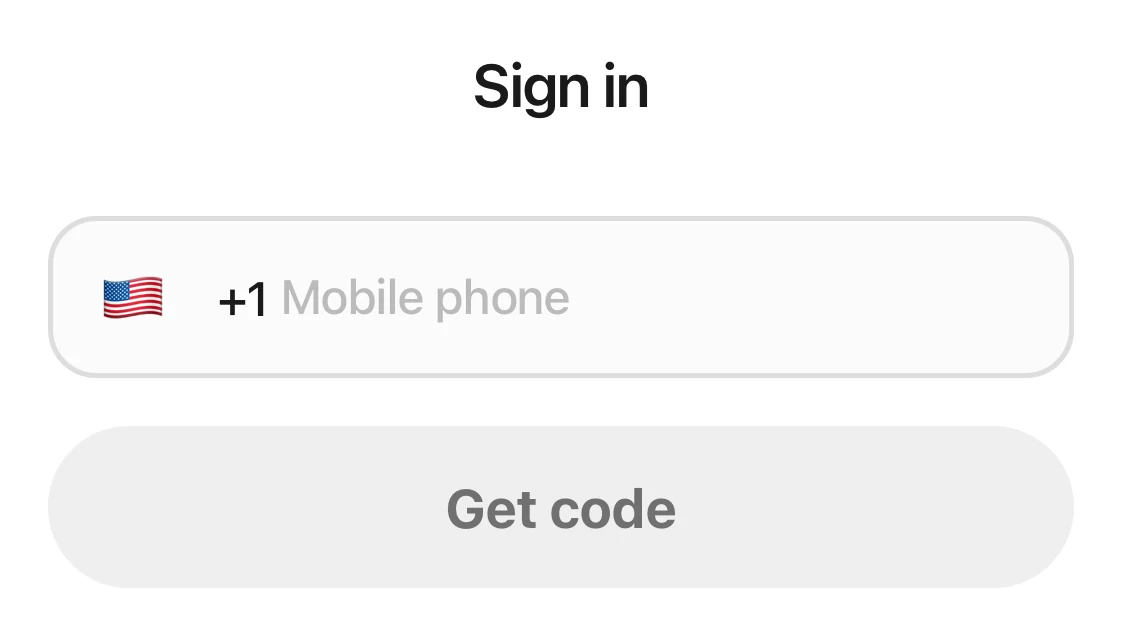
The sign-in page: the Sign in heading, the phone number field, and the Get code button. - Step 2
Look at your business
Go to “Settings › Business info”. This is where you set the photos, name, address, and description customers see on your booking site. Under “Photos”, tap “Add photo” and add a few good pictures. The first one becomes the cover of your booking site. Customers will like what they see as soon as the page opens.
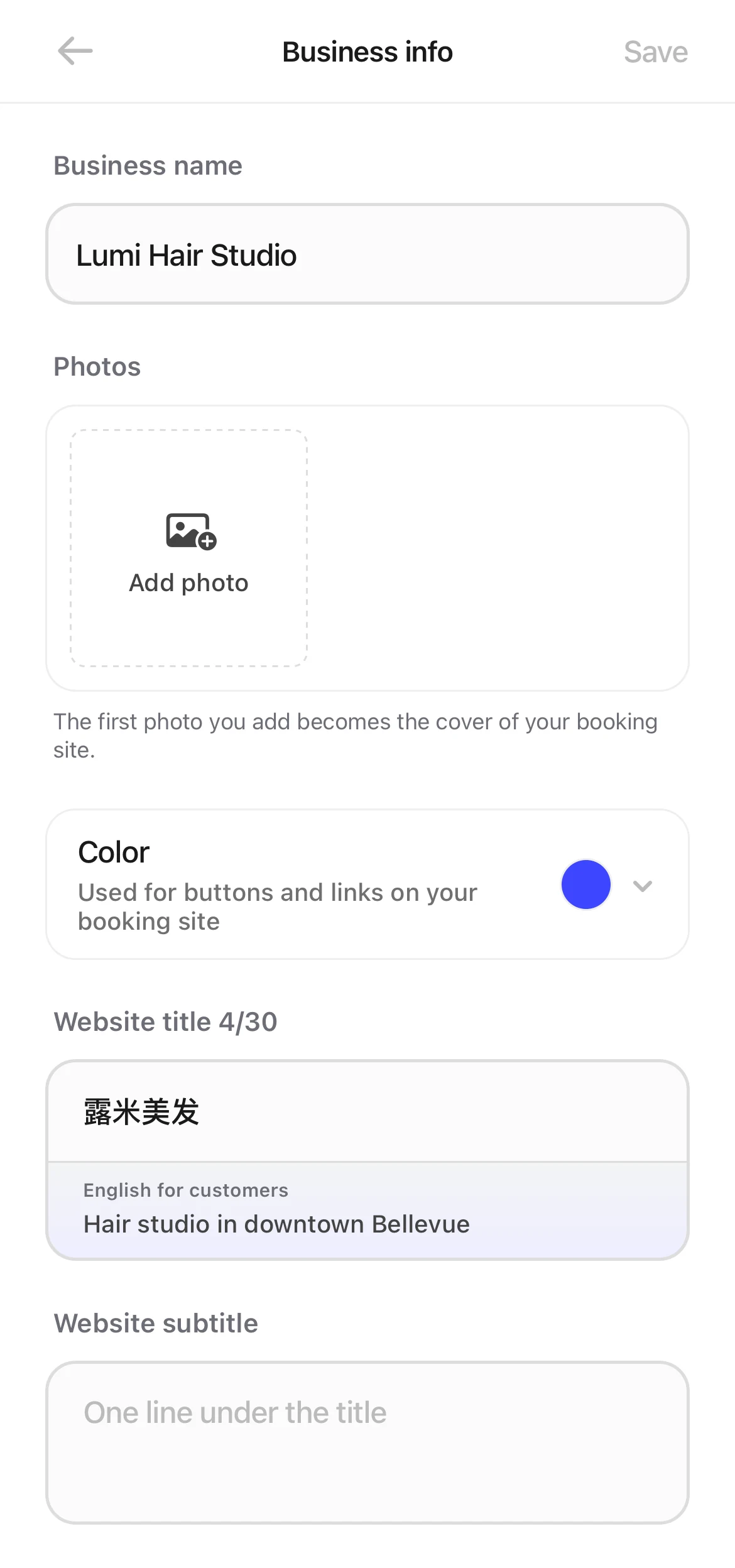
The Business info page: no photos yet, only the Add photo button. - Step 3
Check your services and prices
Go to “Settings › Services & prices”. Some services may already be there from when your account was set up. Check that each name, length, and price is right. If a service is missing, tap “Add service”.
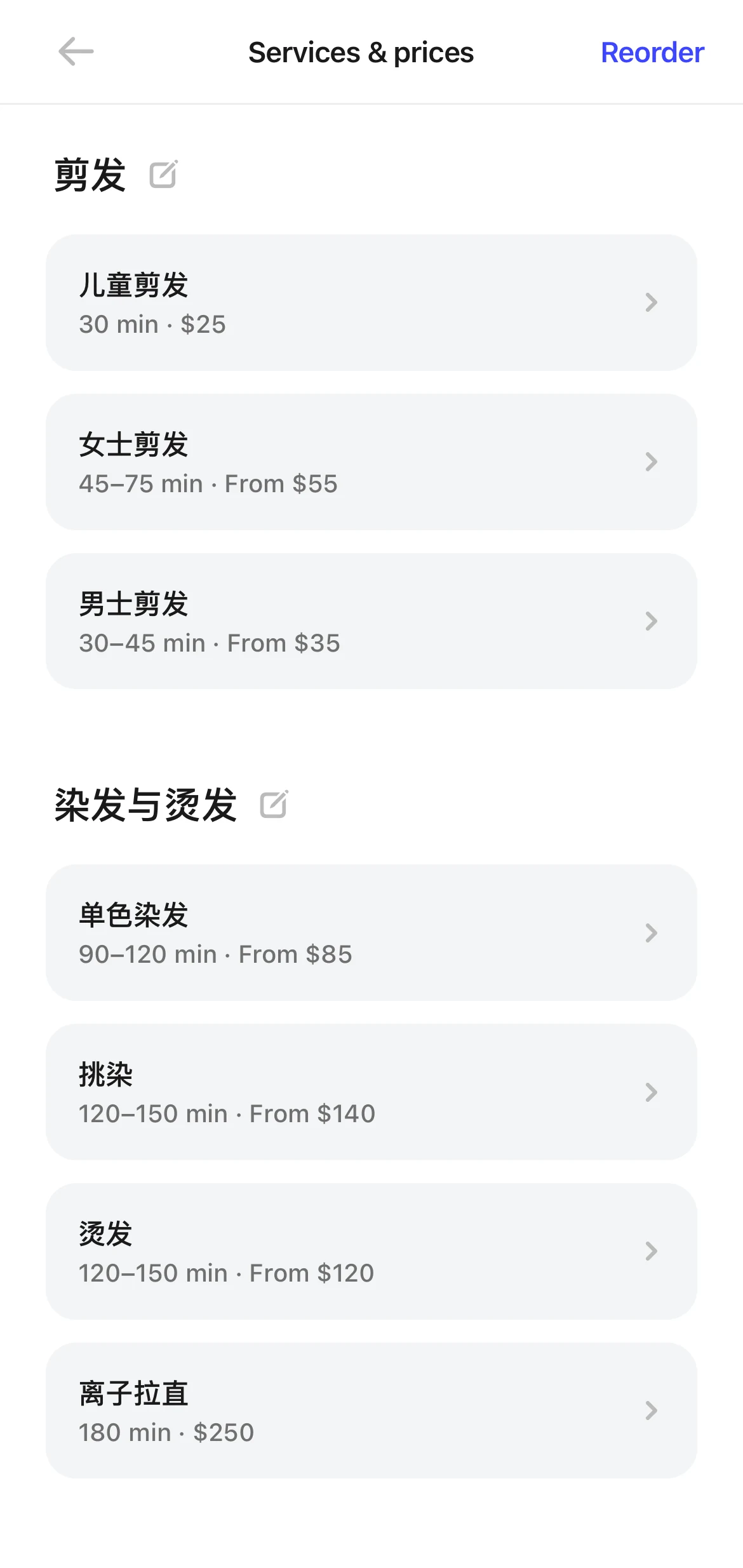
Services & prices: two categories, haircuts and color & perm, each service with its length and price. - Step 4
Set your business hours
Go to “Settings › Business hours”. Set the opening and closing time for each day. For a day you're closed, turn off the switch on the right. Then tap “Save”. Customers can only book times inside your business hours.
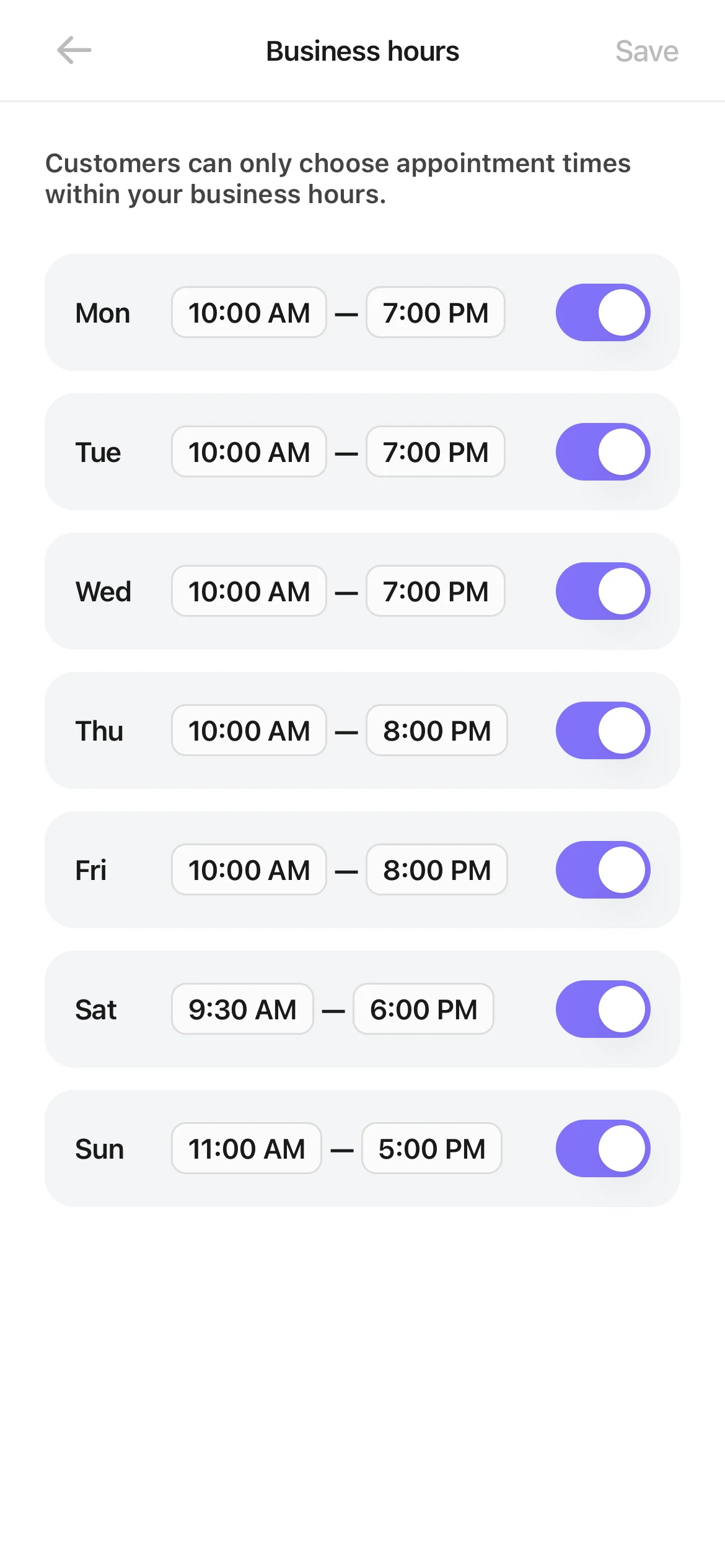
Business hours: opening and closing times for all seven days. - Step 5
Send your booking link to customers
Open “Settings” and tap “Booking site” at the top. This opens “Website status”. Tap “Share link”, then tap “Copy link” and paste it into a text, a chat app, or social media. You can also tap “Download QR code” and print it for your front counter.
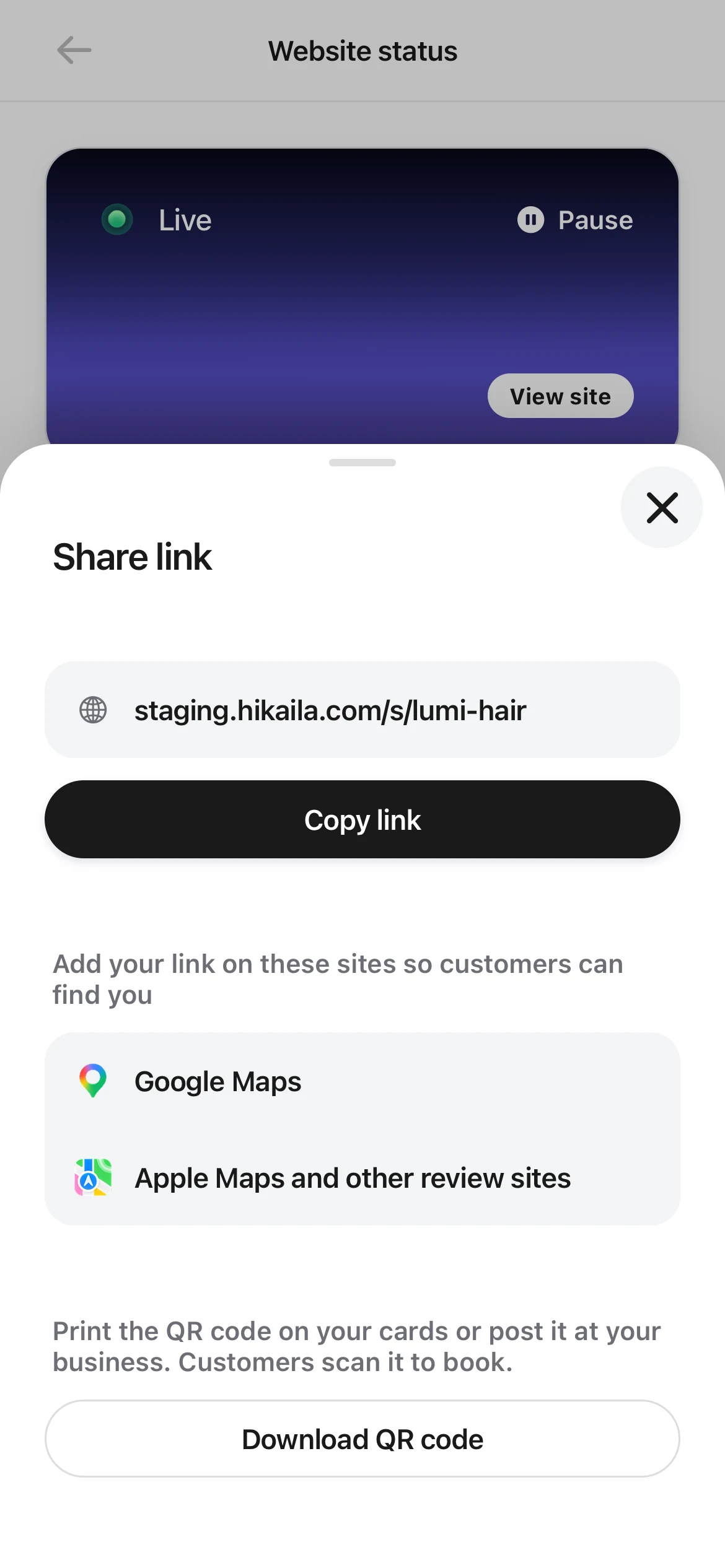
The Share link panel: the booking link, Copy link, and Download QR code. - Step 6
Turn on alerts and wait for your first booking
In the Kaila app, go to “Settings › Notifications”. Under “Push notifications”, turn on “Appointments” and tap “Save”. When a customer books online, your phone shows an alert like “New appointment”, with the time, the service and the staff member under it. Alerts never show the customer's name, because other people may see your screen. Tap it to see the appointment.
Have staff?How do I add a staff member?
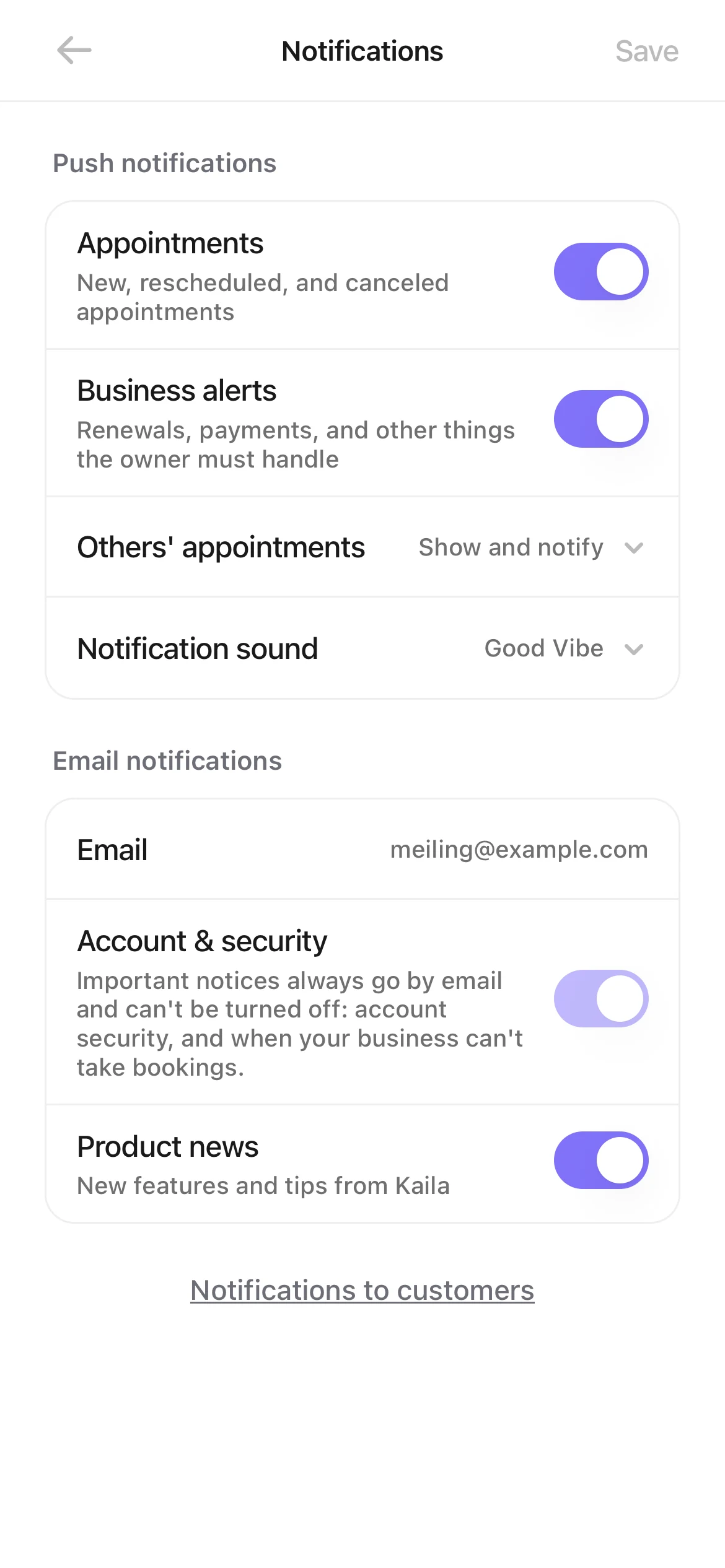
Notification settings: Appointments under Push notifications is turned on. Good to know
- On an iPhone, iPad or Android phone, use the Kaila app to get notifications.How do I download the Kaila app on iPhone, iPad, or Mac?How do I get Kaila on an Android phone or a computer?
- On a computer, use a web browser. You can turn on notifications in a web browser too.How do I get notifications on my computer or in a web browser?
- After you share your link, open it and book once yourself to try it.A customer says they can't book. What should I check?