
How do I add a staff member?
For: Owner, Manager
In short
In “Settings › Staff”, tap “Add staff member”. Enter their name, role, and their own mobile number, then tap “Add and send invite”. When the text arrives, they sign in to Kaila with that number and tap “Join”.
Steps
- Go to “Settings › Staff” and tap “Add staff member”.
- Enter their “Name”. Under “What customers see”, type the English name customers will see.
- Tap “Role” and choose “Manager”, “Front desk” or “Professional”. If you don't choose, they are a “Professional”.
- In “Mobile number”, enter the staff member's own mobile number.
- Tap “Add and send invite”. When you see “Invite sent”, you're done.
- When the text arrives, the staff member downloads the Kaila app, signs in with that number, and taps “Join”.A business invited me to join. What do I do?
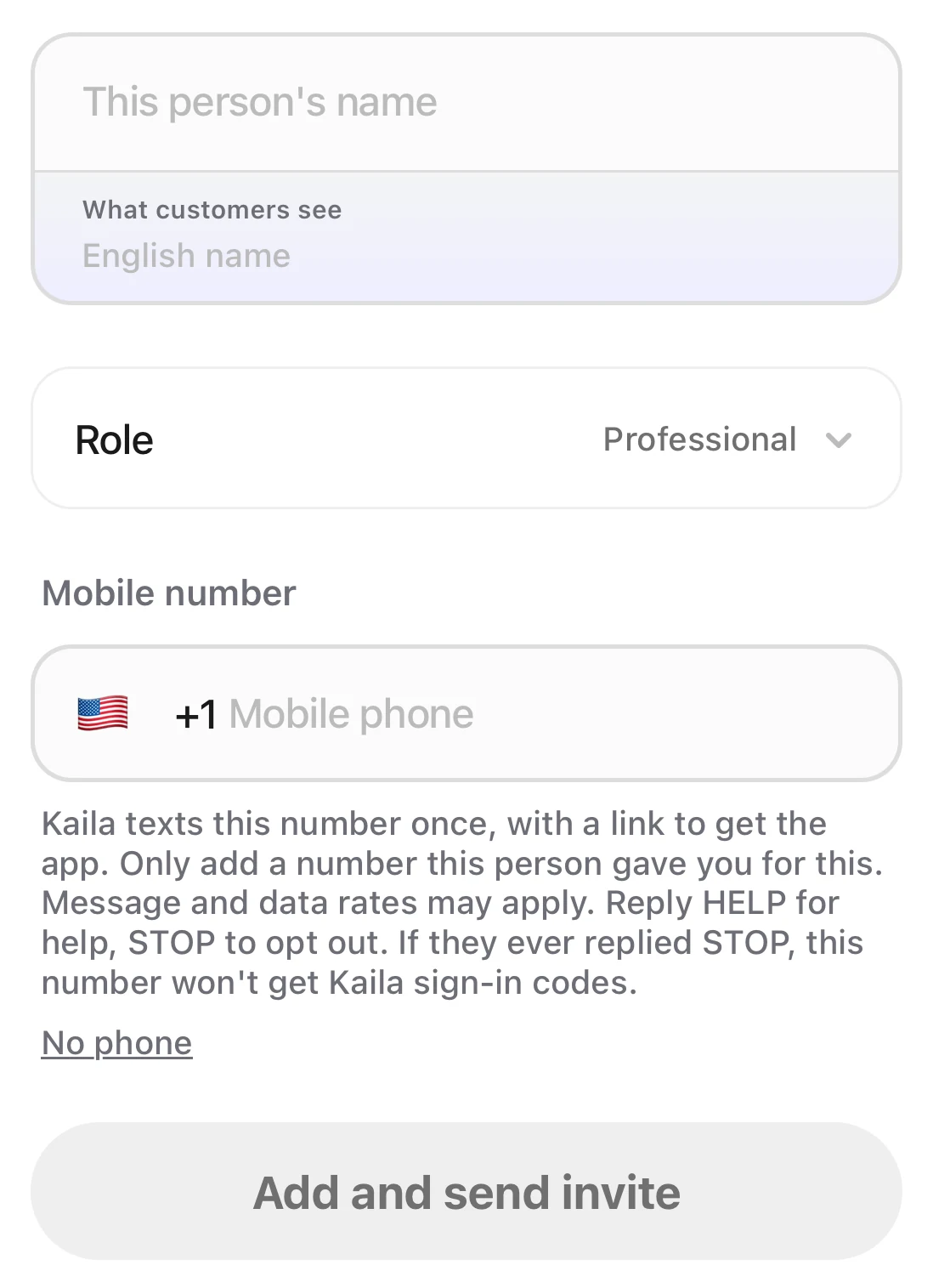
The Add staff member form: Name, What customers see, Role (Professional by default), Mobile number, and the Add and send invite button at the bottom.
After the invite
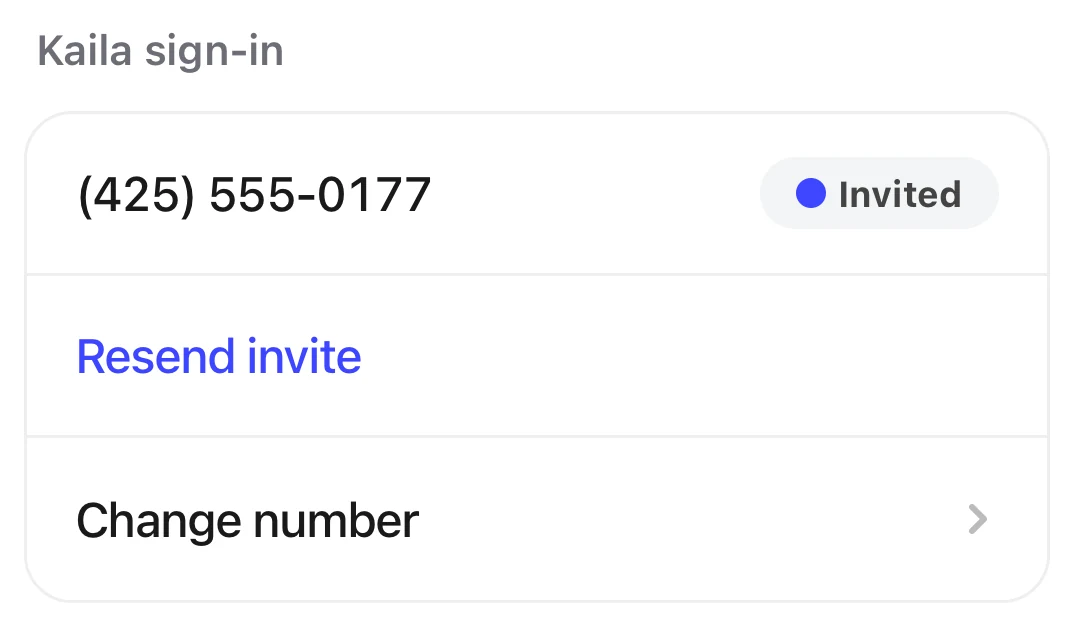
Open the staff member's profile. “Kaila sign-in” shows their number. Until they join, it says “Invited” or “Declined” next to it. After they join, no status shows.
- If they didn't get the text: tap “Resend invite”.
- If the number is wrong: tap “Change number”. If they already joined, the old number loses access to your business right away, and the new number gets an invite.
- If they have no mobile number: tap “No phone” when you add them, then tap “Add staff member”. You see “Staff member added”. They can't sign in to Kaila and don't get appointment notifications. You can tap “Add mobile number” on their profile later.
Good to know
- Only the owner can add a “Manager”. A manager can't manage another manager's number. Only the owner can.
- You must enter both the name and the English name before you can add them.
- For now, you can invite only US and Canadian mobile numbers. Each staff member should use their own number. In one business, a number can belong to only one staff member. A number can get at most 3 invites.
- A new staff member can do every service, and their hours are your business hours. To change this now, tap “Continue setting up”.How do I set a staff member's services and hours?