
How do I sign in to Kaila?
For: Owner, Manager, Front desk, Professional
In short
Everyone signs in with their own phone number and a code we text them. This is the same for owners, managers, front desk, and professionals. There is no password.
Steps
- Open the Kaila app, or go to app.hikaila.com in a browser.
- Under “Sign in”, enter your 10-digit number in “mobile phone”.
- Tap “Get code”.
- Enter the 6-digit code from the text. When you type the last digit, you are signed in.
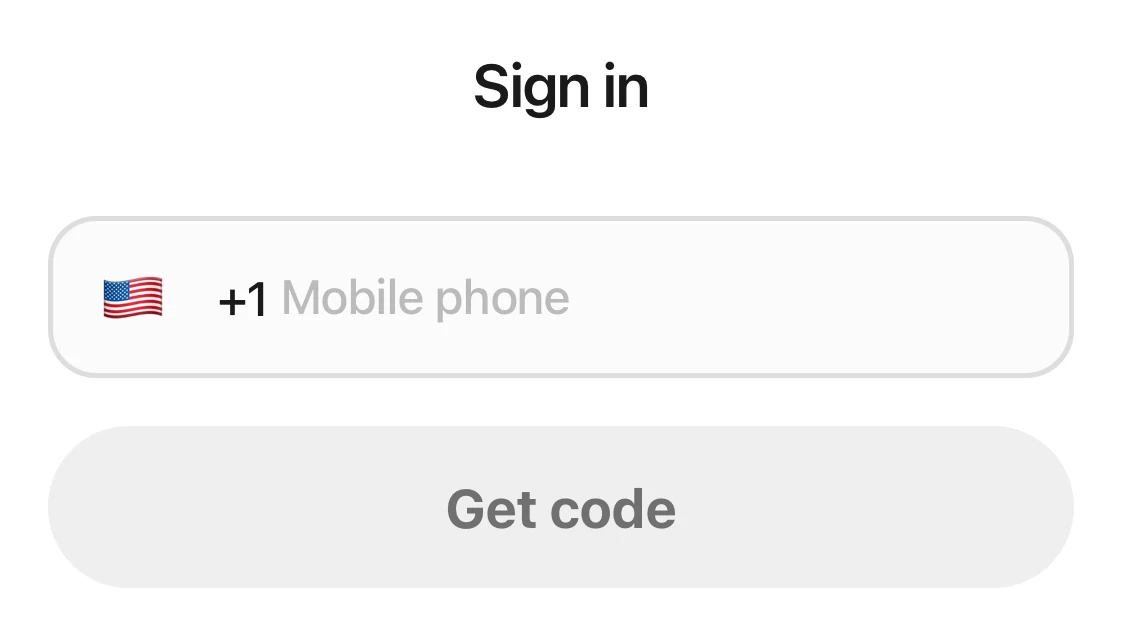
The sign-in page: the Sign in heading, the phone number field, and the Get code button.
Your first sign-in
When a business adds you as a staff member, Kaila sends you an invite text. Sign in with the number that got the text, then tap “Join”.A business invited me to join. What do I do?
Good to know
- Your phone number belongs to you. If you work at more than one business, you sign in with the same number. If you have more than one business, you see “Choose a business” after you sign in. Tap the business you want.
- A code is sent only to a number that is already in Kaila, or to a number that got an invite from a business.
- Only US and Canadian phone numbers work. Any other number shows “Enter a US or Canadian phone number”.
- You can tap “Resend code” after 60 seconds.I didn't get a sign-in code. What do I do?
- If Face ID sign-in is on for this device, the sign-in page shows “Sign in with Face ID” first, with “or sign in with your phone number” under it.How do I sign in with Face ID or my fingerprint?
- If you got a new phone number while you can still sign in, change it yourself in “Sign-in & security”. If a staff member can't sign in anymore, the owner or a manager opens their profile in “Settings › Staff” and taps “Change number”. The new number gets an invite.I have a new phone number. How do I change my sign-in phone?