
I have a new phone number. How do I change my sign-in phone?
For: Owner, Manager, Front desk, Professional
In short
Everyone can change their own sign-in phone. Verify the new number, then the old number, and the change happens right away. If you can't get texts at the old number, you can still change it. The change then takes effect after 24 hours.
Steps
- Open “Settings” and tap your picture at the top right. Go to “Account › Sign-in & security” and tap “Sign-in phone”.
- On the “Change phone number” screen, enter the new number in “New phone number”. Tap “Send code”.
- Enter the 6-digit code sent to the new number.
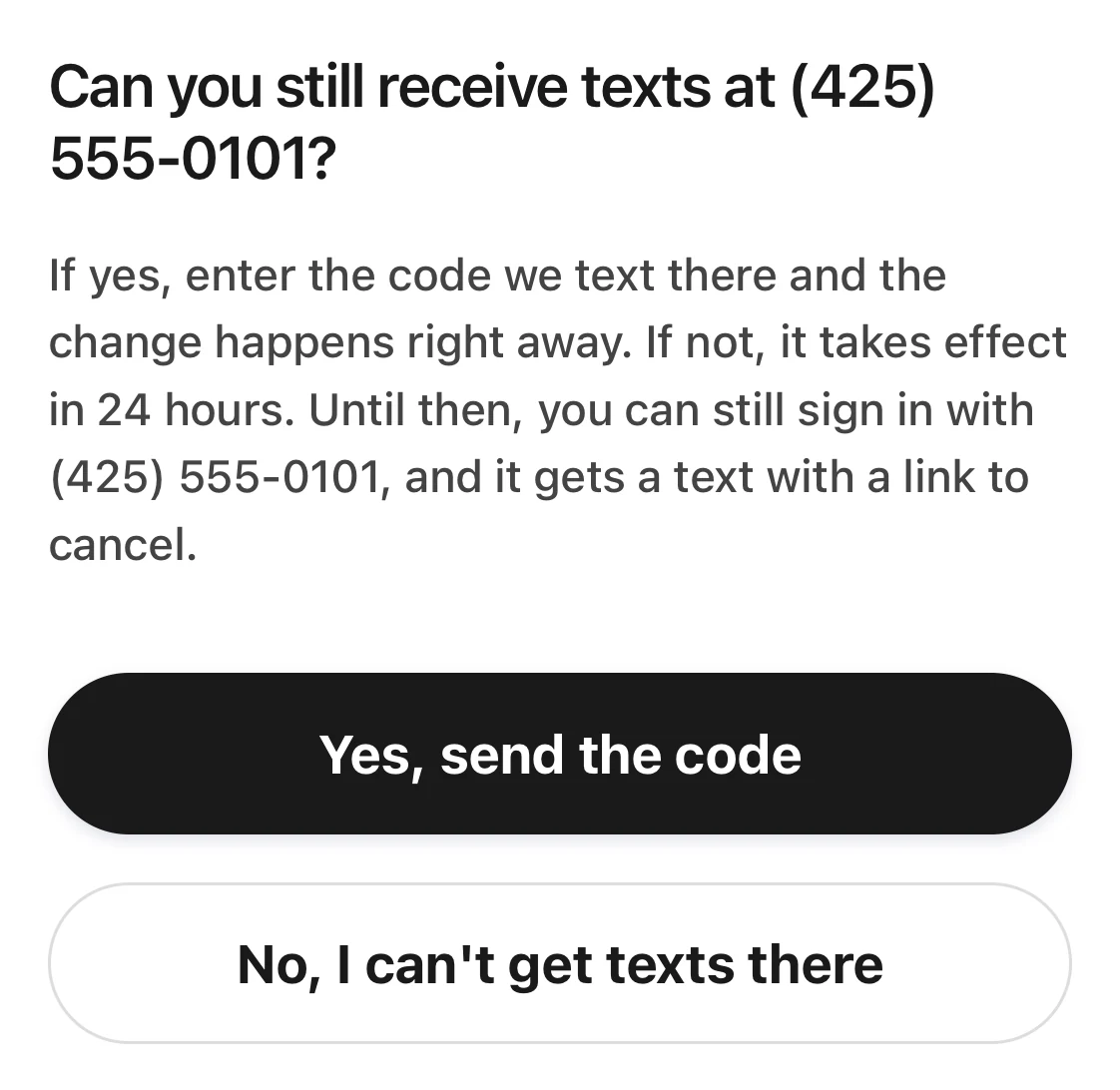
- The screen asks if you can still get texts at the old number:
- If you can: tap “Yes, send the code”, then enter the code sent to the old number. The change happens right away, and your other devices are signed out.
- If you can't: tap “No, I can't get texts there”. The change happens after 24 hours. Until then, you still sign in with the old number.
Good to know
- If you choose “No, I can't get texts there”, the old number gets a text with a link to stop the change. After 24 hours you sign in with the new number, and every device is signed out.
- If you did not make this change, open the link in that text and tap “Cancel the change”.
- The new number can't be one another account already uses. If it is, you see “Another account already uses that number.”
- Only US and Canadian phone numbers work. Any other number shows “Enter a US or Canadian phone number”.
- If you don't have a business right now, you must verify the old number. The screen shows “Now confirm your current number”.
- If a staff member can't sign in anymore, the owner or a manager opens their profile in “Settings › Staff” and taps “Change number”. The new number gets an invite.
- If you are an owner, can't get texts at either number, and can't sign in, contact Kaila.