
How do I sign in with Face ID or my fingerprint?
For: Owner, Manager, Front desk, Professional
In short
Turn on a passkey, and you can sign in on this device with Face ID or your fingerprint. Signing in with a text code always works too.
Turn it on
- Sign in with your phone number and the code we text you.
- After you sign in, Kaila asks “Sign in with Face ID next time?”. On an Android phone it asks “Sign in with fingerprint next time?”.
- Tap “Turn on”, then follow your phone's steps for Face ID or your fingerprint.
- When you see “Face ID sign-in is on”, you are done.
Sign in next time
- Open the sign-in page and tap “Sign in with Face ID” (on Android, “Sign in with fingerprint”).
- Follow your phone's steps. You are signed in.
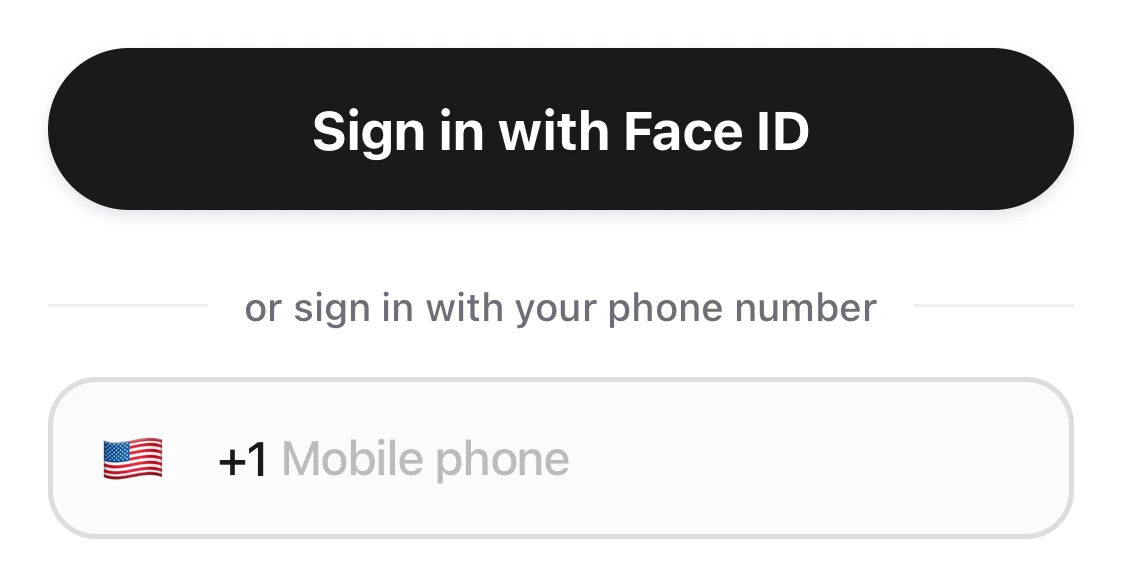
The Sign in with Face ID button at the top, then or sign in with your phone number and the phone field.
Manage your passkeys
- Open “Account › Sign-in & security” and tap “Passkeys”.
- To add one on this device, tap “Add a passkey”.
- To stop using one, tap “Delete” next to it. When you see “Delete this passkey?”, tap “Delete” again.
Good to know
- The sign-in page shows this button only when this device already has your passkey.
- If you tap “Not now”, Kaila asks again the next time you sign in with a code.
- If other people share this device, they can also use it to sign in to your account.
- If you signed in more than 10 minutes ago, you need to enter a text code before you add a passkey.