
How do I change my booking site's photos, name, address, and description?
For: Owner, Manager
In short
Open “Settings › Business info”, make your changes, and tap “Save” at the top right. What you enter on this page is what customers see on your booking site.
Steps
- Open “Settings › Business info”.
- Under “Photos”, tap “Add photo”. The first photo is the cover of your website. Touch and hold a photo to change the order.
- In “Business name”, enter the English name customers will see.
- Choose a “Color”. Buttons and links on your booking site use this color.
- Fill in “Website title”, “Website subtitle”, and “About us”. Write them in Chinese, then tap “Translate”. The English shows under “English for customers”, and you can edit it.
- Tap “Business type” and choose what your business does.
- In “Address”, type your street address and choose one of the suggestions. Then fill in “Phone” and “Email”.
- Tap “Save”. When you see “Business info saved”, you're done.
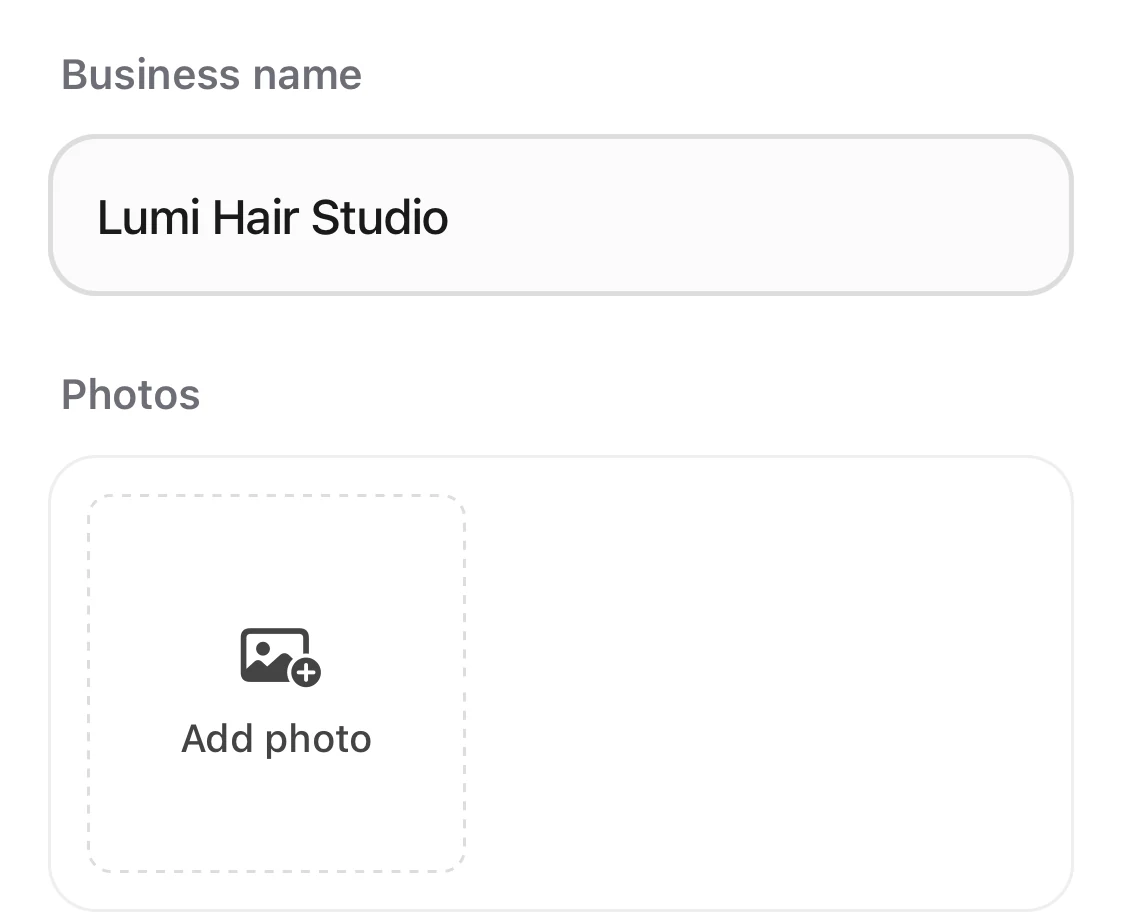
The business name field, with the Add photo box under Photos below it.
Good to know
- You can add up to 10 photos. Each one must be 10 MB or smaller, and in JPG, PNG, or WebP format. Your website must keep at least one photo.
- If you wrote Chinese but there is no English yet, you can't tap “Save”. Tap “Translate” first, or type the English yourself.
- Changing your business name does not change your booking link. To change the link, contact Kaila.
- Only the owner and managers can open this page.