
How do I get new appointment notifications on my phone?
For: Owner, Manager, Front desk, Professional
In short
You get push notifications in the Kaila app. Go to “Settings › Notifications”, turn on “Appointments”, and tap “Save”.
Steps
- Open the Kaila app on your phone and go to “Settings › Notifications”.
- Under “Push notifications”, turn on “Appointments”. Your phone then notifies you when an appointment is booked, rescheduled, or canceled.
- Tap “Others' appointments” and choose “Show and notify”, “Show only”, or “Don't show”.
- Tap “Notification sound” and choose a sound.
- Tap “Save” at the top right. When you see “Saved”, you're done.
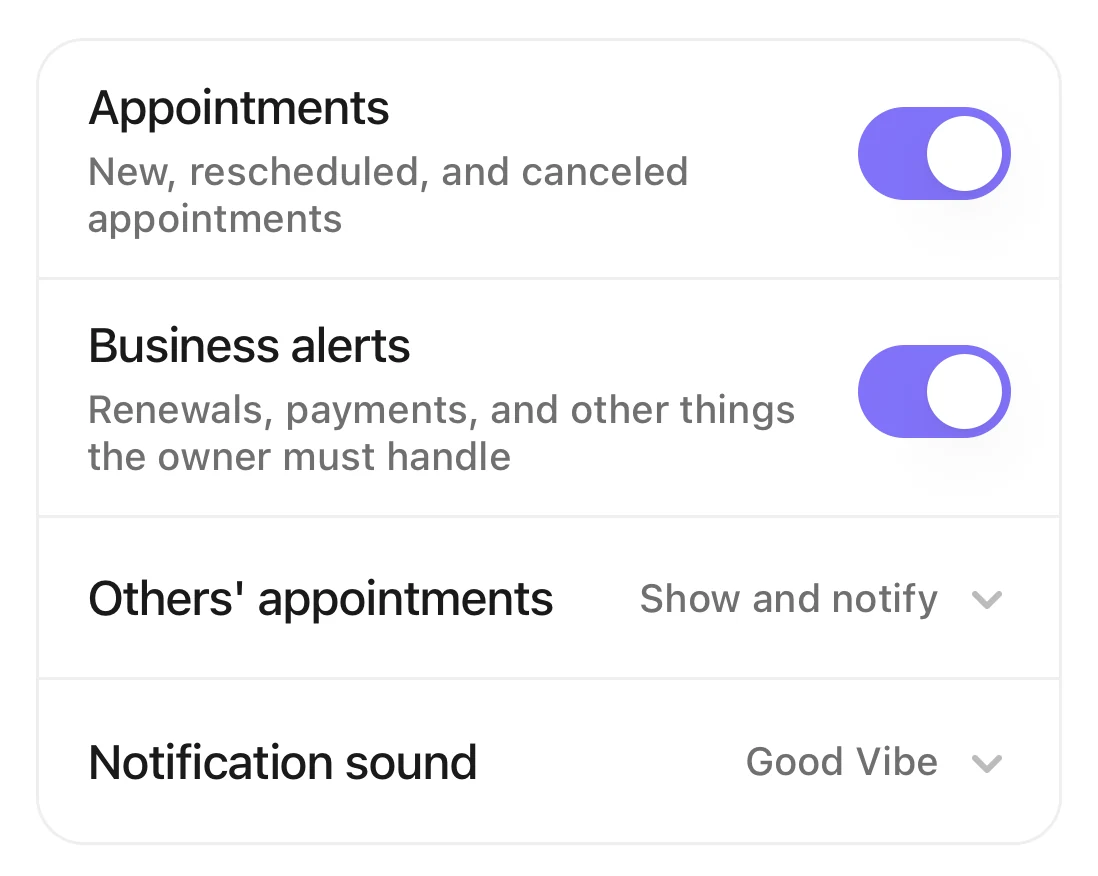
Appointments and Business alerts under Push notifications, with both switches on.
Good to know
- You get a notification when a customer books, moves, or cancels online, and when someone on your team adds, moves, reassigns, changes the service of, or cancels an appointment in the app. You always get notified about your own appointments, whatever you choose in “Others' appointments”. If an appointment is moved from you to someone else, you're notified too.
- You're never notified about a change you made yourself. No-shows, appointments that already ended, and appointments canceled when the business closes don't send a notification; you see them in “Activity”.
- The owner, managers, and front desk also see “Business alerts”. These are about things your business needs to take care of, not about appointments. They also get a notification when a staff member leaves your business. This one can't be turned off.
- If Kaila's notifications are turned off on your phone, “Appointments” is grayed out. Tap “Open iPhone Settings”, then turn them on in “Settings › Notifications › Kaila”.
- If you open Kaila in a web browser, “Push notifications” shows “Turn on notifications” or “Get the Kaila app”.How do I get notifications on my computer or in a web browser?