
What does “Activity” show?
For: Owner, Manager, Front desk, Professional
In short
“Activity” shows what happened at your business lately: who booked, who changed or canceled, and what needs your attention.
What you see
- “Business alerts”: things your business needs to take care of, like “Business hours aren't set” or “No services customers can book”. An alert goes away by itself once you fix it. You also see here when your booking site goes live and when your monthly report is ready.
- “Business alerts” also shows plan and balance alerts, like “Your trial ends soon” or “Your balance is running low”. When the owner taps one, “Plan & billing” opens. Managers and the front desk see them too, with “The owner needs to handle this.” under them.
- When a staff member leaves your business and still has upcoming appointments, “Business alerts” shows “Maria left · 2 appointments to move”, with “Move them to other staff on the calendar.” under it. Tap it to open the calendar on the day of their first appointment. When all of them are moved, the alert goes away by itself. The owner, managers, and the front desk see it. When a staff member declines your invite, the owner and managers see “Maria declined the invite” here.
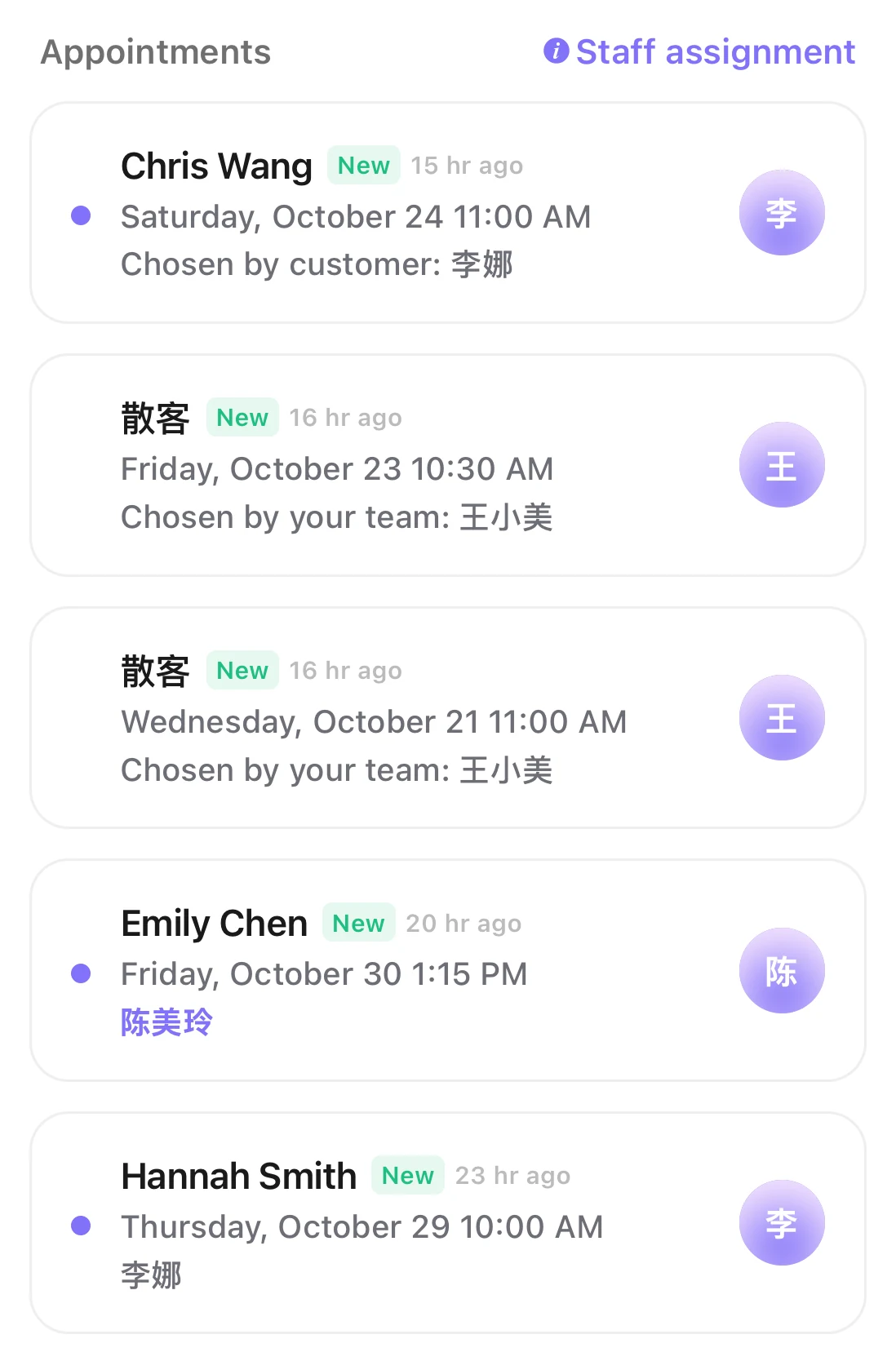
- “Appointments”: appointment changes from the last 30 days. Each one is marked “New”, “Changed”, “Canceled” or “No-show”.
- Each one says who did it: “Booked online by the customer”, or “By Maria”.
- Each appointment also says who it went to and how it was assigned.How do I see in “Activity” how each appointment was assigned?
Good to know
- By default, the owner, managers and the front desk see every appointment at the business and get notified. Professionals also see their colleagues' appointments here, but without a notification. Each person can change this.How do I get new appointment notifications on my phone?
- Changes you make yourself are listed too, but they don't count as unread.
- Tap an item to open its details and mark it read. Tap “Mark all read” to mark everything read.