
How do I see in “Activity” how each appointment was assigned?
For: Owner, Manager, Front desk, Professional
In short
Under “Appointments” in “Activity”, every appointment says who it went to and how it was assigned. Everyone in the shop sees the same words.
What each appointment says
While “Set your own assignment rules” is off, it says only how it was assigned and who has it:
- “Auto · A”: neither the customer nor your team chose anyone; Kaila assigned A.
- “Requested by customer · A”: the customer asked for A.
- “Assigned by shop · A”: your team chose A when adding the appointment, with “Customer requested” off.
While it is on, it also says why:
- “Turn: A”: with “Take turns”, it was A's turn.
- “Went to A”, followed by “B busy”: with “Take turns”, it was B's turn, but B was busy, so it went to A.
- “Auto: A”: with “By booked time” or “By number of appointments”, Kaila assigned A.
- “Requested by customer: A” or “Assigned by shop: A”: with “Take turns”, followed by “counts as a turn” or “not a turn”.
- With “Take turns”, when an appointment that counted as a turn is canceled or the customer doesn't come, it says “not a turn”. Open it to see who got the turn back, for example “Canceled, so A gets the turn back.”
With the switch on or off, when your team moves an appointment to someone else, it says “A → B” and “changed by your team”.
Open an appointment to read one sentence about why, for example “B was busy, so it went to A.” When an appointment went to you, the start of its line is purple.
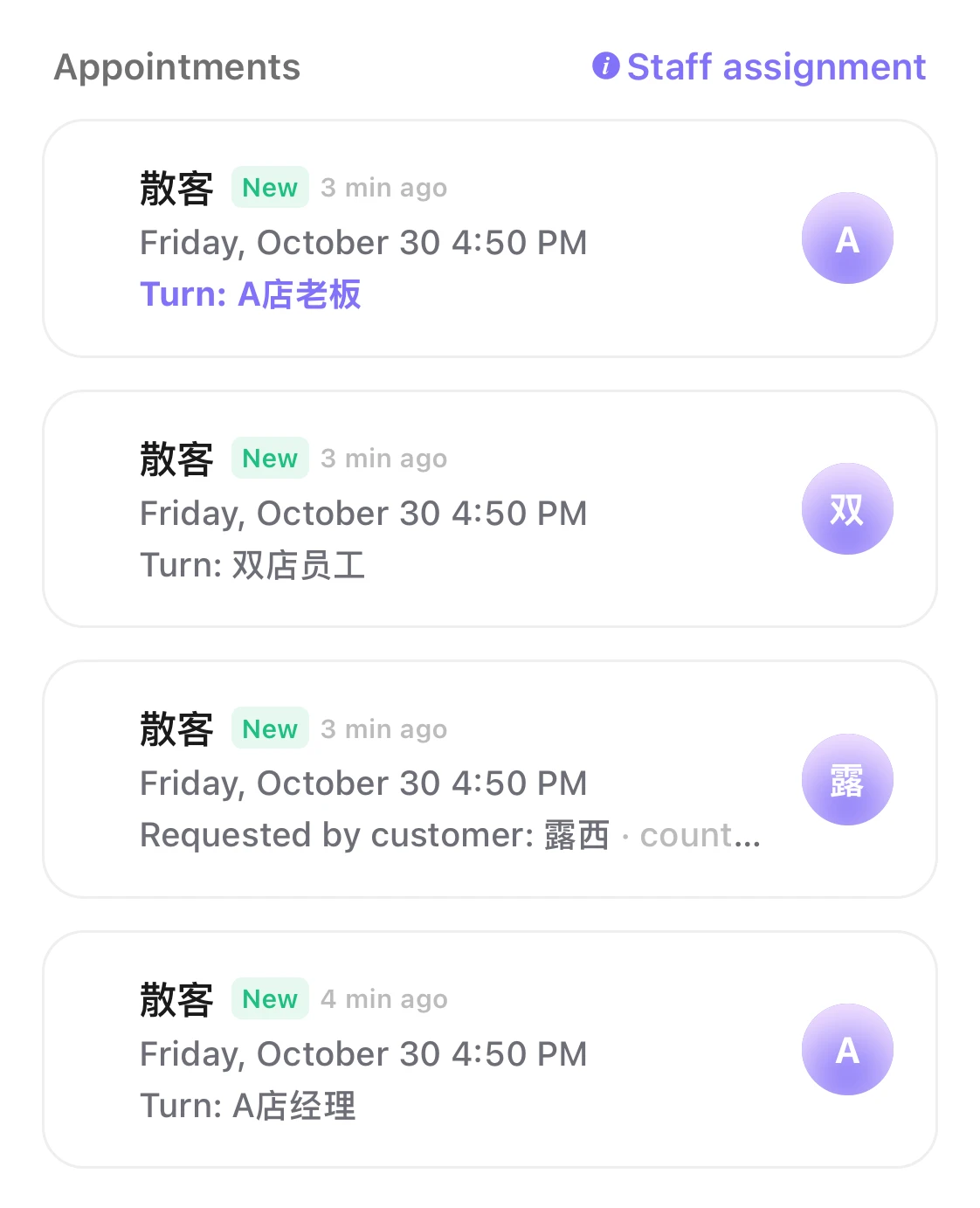
“Staff assignment”: the rules and the order right now
On the right of the “Appointments” heading is “Staff assignment”. Tap it to see:
- Your rules, in one paragraph.
- The order right now. “Next” is who the next appointment goes to. Everyone else shows their state, for example “Available”, “Busy”, “On break”, “Done for today”, or when they start.
- A list of the rules.
Under the list it says “This is the order right now.” While it is open, the list updates every minute.
- With “By booked time”, each name shows the booked time that day; with “By number of appointments”, the number of appointments that day.
- With “Take turns” and “Start over each day”, “First today” above the list shows who goes first today and tomorrow. Tap it to see the next few days.
- With “Priority levels” on, the list is split into “Priority 1”, “Priority 2” and “Priority 3”.
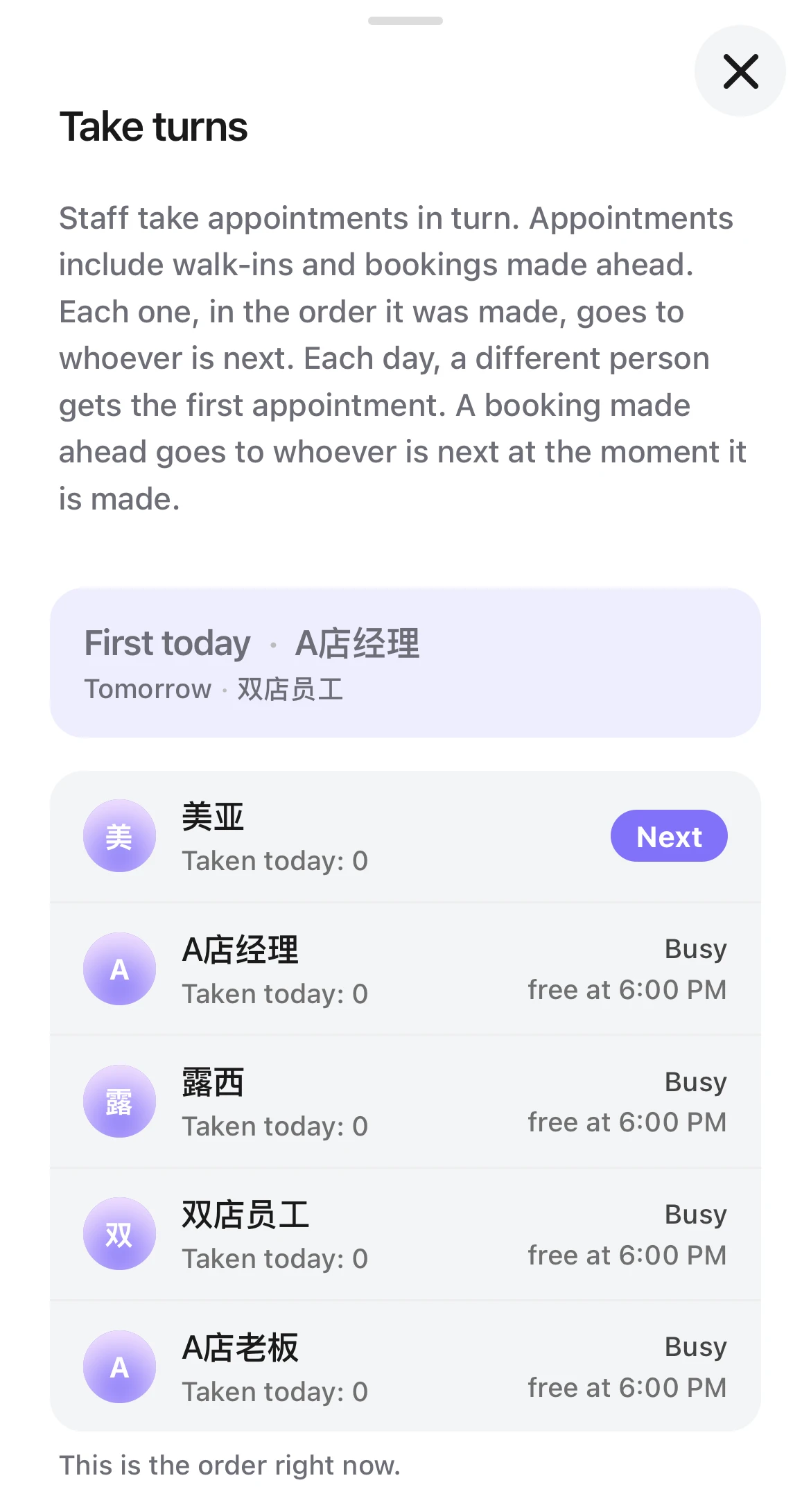
Good to know
- “Next” is about right now. If the next service is longer than that person has time for, or they don't offer it, the appointment goes to someone further down.
- “Activity” has no “Staff assignment” in these cases: “Set your own assignment rules” is off, or only one staff member is bookable online (“Bookable online” on).
- “Staff assignment” is for reading only. The owner and managers change the rules in “Settings › Advanced features”.