
Which “Assignment method” should I choose, and how are they different?
For: Owner, Manager
In short
How to change it
- Go to “Settings › Advanced features”.
- Under “Staff assignment”, turn on “Set your own assignment rules”.
- Tap “Assignment method” and choose one.
- Tap “Save” in the top right corner.
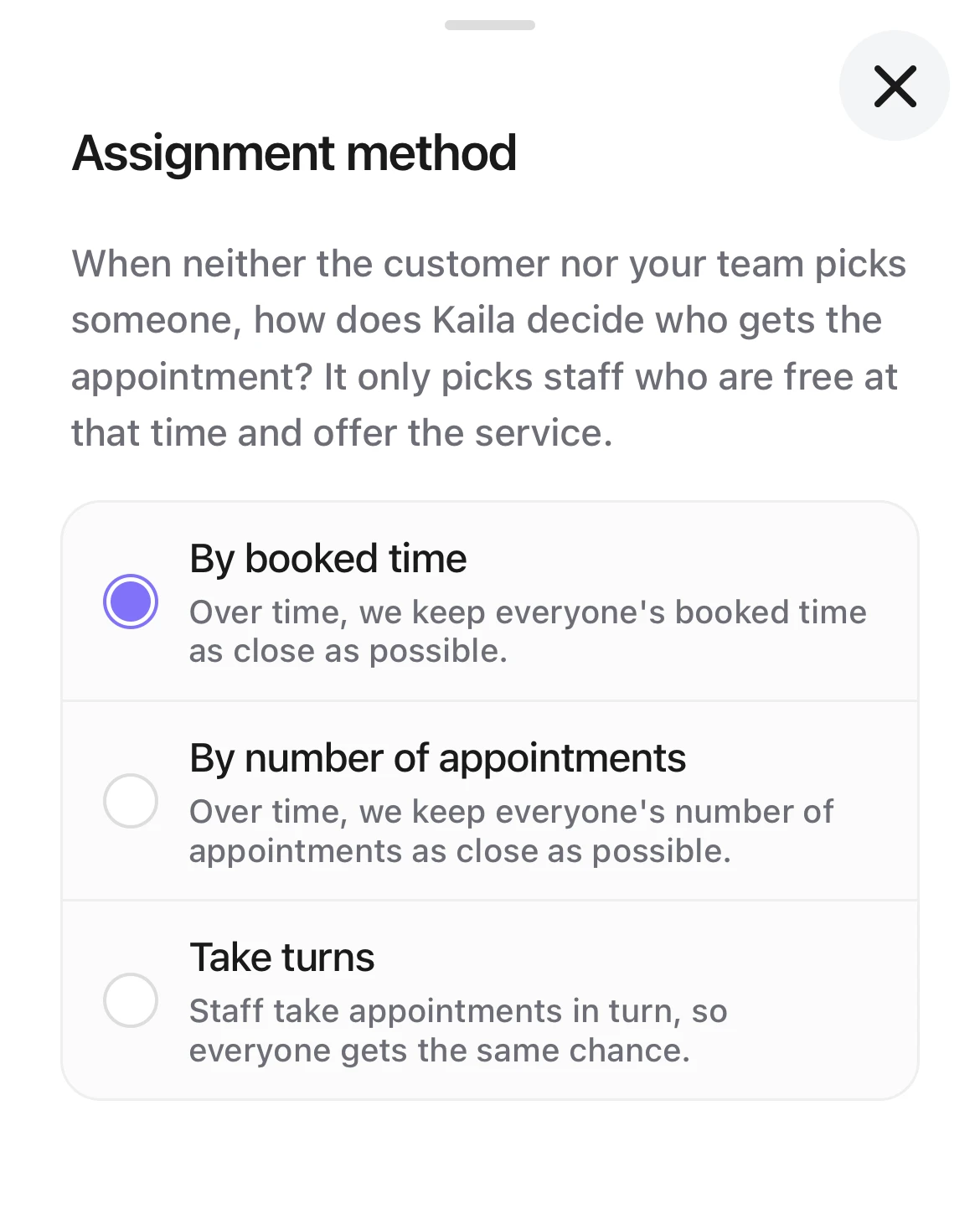
Choosing the Assignment method: By booked time (selected), By number of appointments, and Take turns, each with how it shares the work.
“By booked time” (the default)
Each appointment goes to whoever has the least booked time that day. Booked time counts only the service time. Over time, everyone's booked time stays as close as possible.
Suits: shops whose services have different lengths, for example 30, 60 and 90 minutes. It is fair when everyone is busy for about the same time.
Example: today A already has 2 hours booked, B has 1 hour and C has nothing. A new appointment comes in and all three are free: it goes to C.
“By number of appointments”
Each appointment goes to whoever has the fewest appointments that day. One appointment counts as one, whatever its length. Over time, everyone's number of appointments stays as close as possible.
Suits: shops whose services are about the same length, or shops that care most about how many customers each person serves.
Example: today A has 3 appointments, B has 1 and C has 2. A new appointment comes in and all three are free: it goes to B. Even if B's one appointment is 2 hours long, it counts as one.
“Take turns”
Everyone takes appointments in order, so everyone gets the same chance. Whoever just took one moves back; whoever has taken fewer moves up. If the person whose turn it is is busy, the appointment goes to the next free person; the busy person stays in front and takes the next one when free.
Suits: shops where staff are used to taking customers in turn, for example with many walk-ins, and staff want to know who is next. “Staff assignment” in “Activity” shows the order right now.
Example: A, B and C have taken the same number of appointments lately, and the order is A, B, C. An appointment comes in and goes to A; A moves back, so the order is B, C, A. The next one goes to B. The one after that is C's turn, but C is busy, so it goes to A first. When C is free, C takes the next one.
- A booking made ahead goes to whoever is next at the moment it is booked.
- With “Daily order” on “Continue from yesterday”, Kaila also looks at the last three months: whoever took fewer goes first, and days someone didn't work don't count.
What all three have in common
- Kaila only picks someone free at that time, who offers the service and whose “Bookable online” is on. Someone busy or not working is never picked.
- Kaila assigns appointments in the order they are made. That includes walk-ins and bookings made ahead.
- Canceled appointments and no-shows don't count toward workload. With “Take turns”, the turn is given back.
- A service that needs two staff members: with “By booked time” each person counts the whole time; with “By number of appointments” each counts one appointment; with “Take turns” each counts one turn.
- Whether customer-requested appointments count depends on “Customer-requested appointments”. An appointment your team added with a staff member chosen but “Customer requested” off counts like “Auto-assign”.
Good to know
- “By booked time” and “By number of appointments” count each day separately. A booking made ahead counts on the day of the appointment.
- With “By booked time”, when two people have the same booked time, the one with fewer appointments that day goes first.
- With “Priority levels” on, the level comes first; inside a level, the “Assignment method” decides.
- Tap “Rules summary” to see all your settings together.
- After you change the method and save, new appointments follow it. Appointments already assigned don't change.