
How does Kaila choose a professional when the customer doesn't?
For: Owner, Manager
In short
When neither the customer nor your team picks someone, Kaila picks a staff member. The default rule: the appointment goes to the staff member who is free then and has the least booked time that day, keeping everyone's workload as close as possible. Most shops can keep the default. If your shop has its own way of sharing customers, turn on “Set your own assignment rules” and decide for yourself.
When Kaila picks
- The customer booked online and didn't choose a staff member.
- Your team added an appointment and chose “Auto-assign” in “Staff”.
Appointments include walk-ins and bookings made ahead. Kaila assigns them one by one, in the order they are made. When the customer chose someone online, or your team chose someone when adding the appointment, it goes to that person.
Who Kaila can pick
- Someone free at that time: working, and not busy.
- Someone who offers the service.
- Someone whose “Bookable online” is on.
Keep the default, or set your own
- Go to “Settings › Advanced features” and find “Staff assignment”.
- While “Set your own assignment rules” is off, Kaila uses the default rule. There is nothing else to do.
- To set your own, turn on “Set your own assignment rules”. Four settings appear: “Priority levels”, “Assignment method”, “Daily order” and “Customer-requested appointments”. They start on the default. Under the switch it says: “When this is on, each appointment in Activity says why it went to that staff member, and Activity shows the rules summary and the turn order. Everyone in the shop can see this.”
- Make your changes and tap “Save” in the top right corner. Turning the switch on or off also needs “Save”.
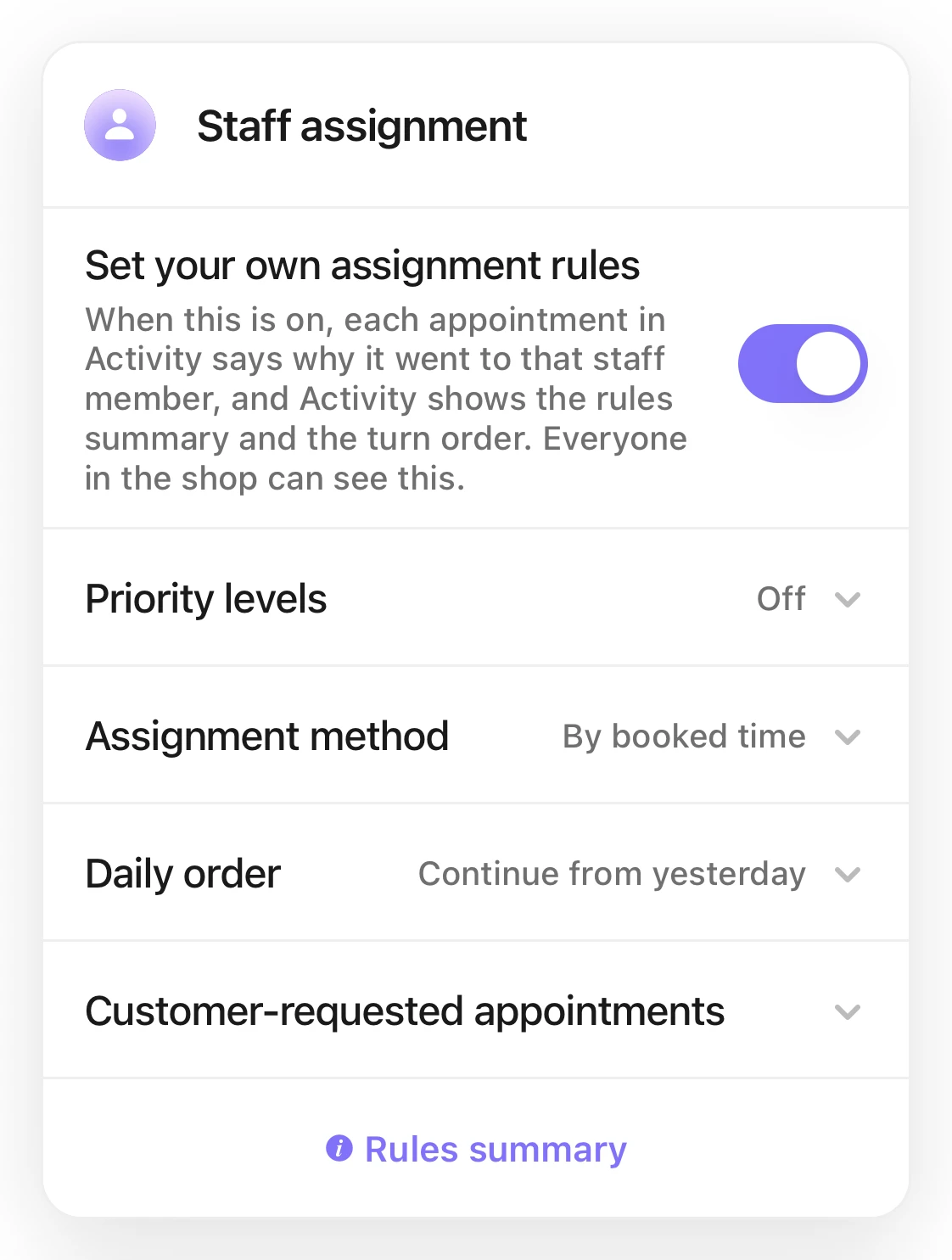
The Staff assignment card with Set your own assignment rules on, and under it Priority levels (Off), Assignment method (By booked time), Daily order (Continue from yesterday), and Customer-requested appointments (Count toward workload).
What each of the four settings does
- “Priority levels”: whether Priority 1 staff get appointments first.What are “Priority levels”, and how do I let Priority 1 go first?
- “Assignment method”: when several people are free, who gets the appointment. There are three: “By booked time”, “By number of appointments” and “Take turns”.Which “Assignment method” should I choose, and how are they different?
- “Daily order”: who gets the first appointment each day.“Daily order”: who gets the first appointment each day?
- “Customer-requested appointments”: when Kaila assigns appointments, whether a customer-requested appointment counts toward that person's workload.Do customer-requested appointments count toward a staff member's workload?
Go back to the default
- Under “Staff assignment”, turn off “Set your own assignment rules”.
- If any setting is not on its default, Kaila asks “Go back to the default assignment rules?”, with the default rule in a box. Tap “Use default”. To keep your rules, tap “Cancel”.
- Tap “Save” in the top right corner to keep the change. All four settings go back to the default.
Which shops each choice suits
- The default: most shops. Services of different lengths are fine — sharing by booked time keeps everyone about equally busy.
- Your own rules: when your shop already has its own way, for example:
- Staff are used to taking customers in turn and want to know who is next: set “Assignment method” to “Take turns”.
- Senior staff should get customers first, and others only when they are busy: turn on “Priority levels”.
- A different person should take the first customer each day: set “Daily order” to “Start over each day”.
- Regulars often ask for one person, and you want to decide whether those appointments count toward workload: change “Customer-requested appointments”.
Who sees what
- Only the owner and managers can change “Staff assignment”. The front desk and other staff don't see it in “Settings”.
- Every appointment in “Activity” says how it was assigned. Everyone in the shop sees the same words.
- While “Set your own assignment rules” is off, an appointment says only how it was assigned and who has it, for example “Auto · A”, “Requested by customer · B” or “Assigned by shop · C”.
- While it is on, an appointment also says why, for example “B busy” or “counts as a turn”. “Activity” has a “Staff assignment” link; tap it to see the rules and the order right now.How do I see in “Activity” how each appointment was assigned?
- When only one staff member is bookable online, there is nobody to choose between, so “Activity” has no “Staff assignment” link.
Good to know
- Tap “Rules summary” to see what your rules mean together.
- The order in “Staff › Reorder” only sets the order on your calendar and website. It doesn't decide who gets appointments.
- Once you turn on “Set your own assignment rules” and save, it stays on even if all four settings are on their default, and “Activity” keeps saying why.
- After you change a setting and save, new appointments follow the new rules. Appointments already assigned don't change.
Related articles
- Which “Assignment method” should I choose, and how are they different?
- What are “Priority levels”, and how do I let Priority 1 go first?
- “Daily order”: who gets the first appointment each day?
- Do customer-requested appointments count toward a staff member's workload?
- How do I see in “Activity” how each appointment was assigned?
- Can customers choose their professional? How do I turn on group booking?
- How do I set a staff member's services and hours?
- What does “Activity” show?