
What are “Priority levels”, and how do I let Priority 1 go first?
For: Owner, Manager
In short
How to turn it on
- Go to “Settings › Advanced features”.
- Under “Staff assignment”, turn on “Set your own assignment rules”.
- Tap “Priority levels” and choose “On”.
- Tap “Save” in the top right corner.
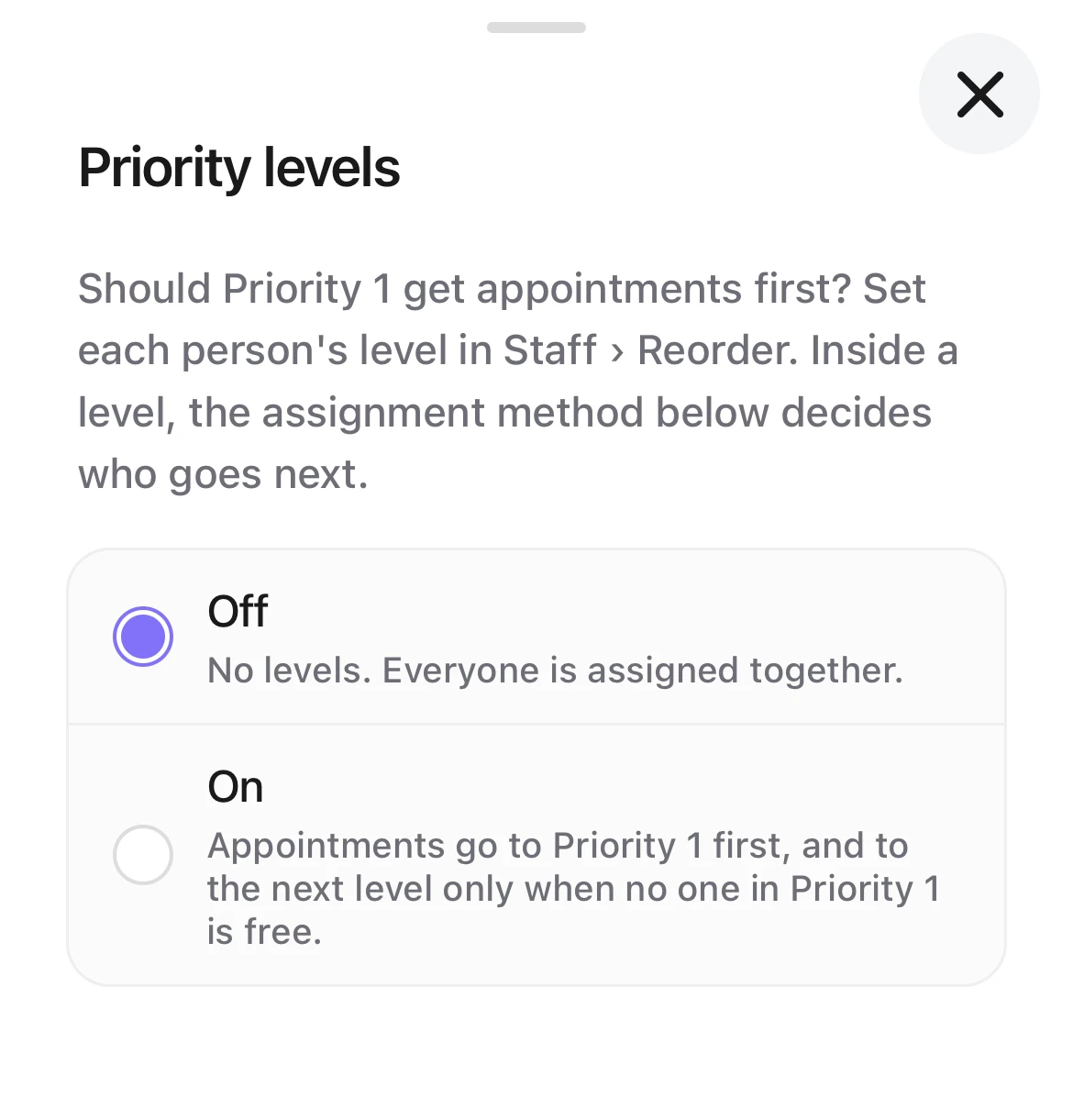
Choosing Priority levels: Off (selected) treats everyone alike; On gives appointments to Priority 1 first.
Put each person in a level
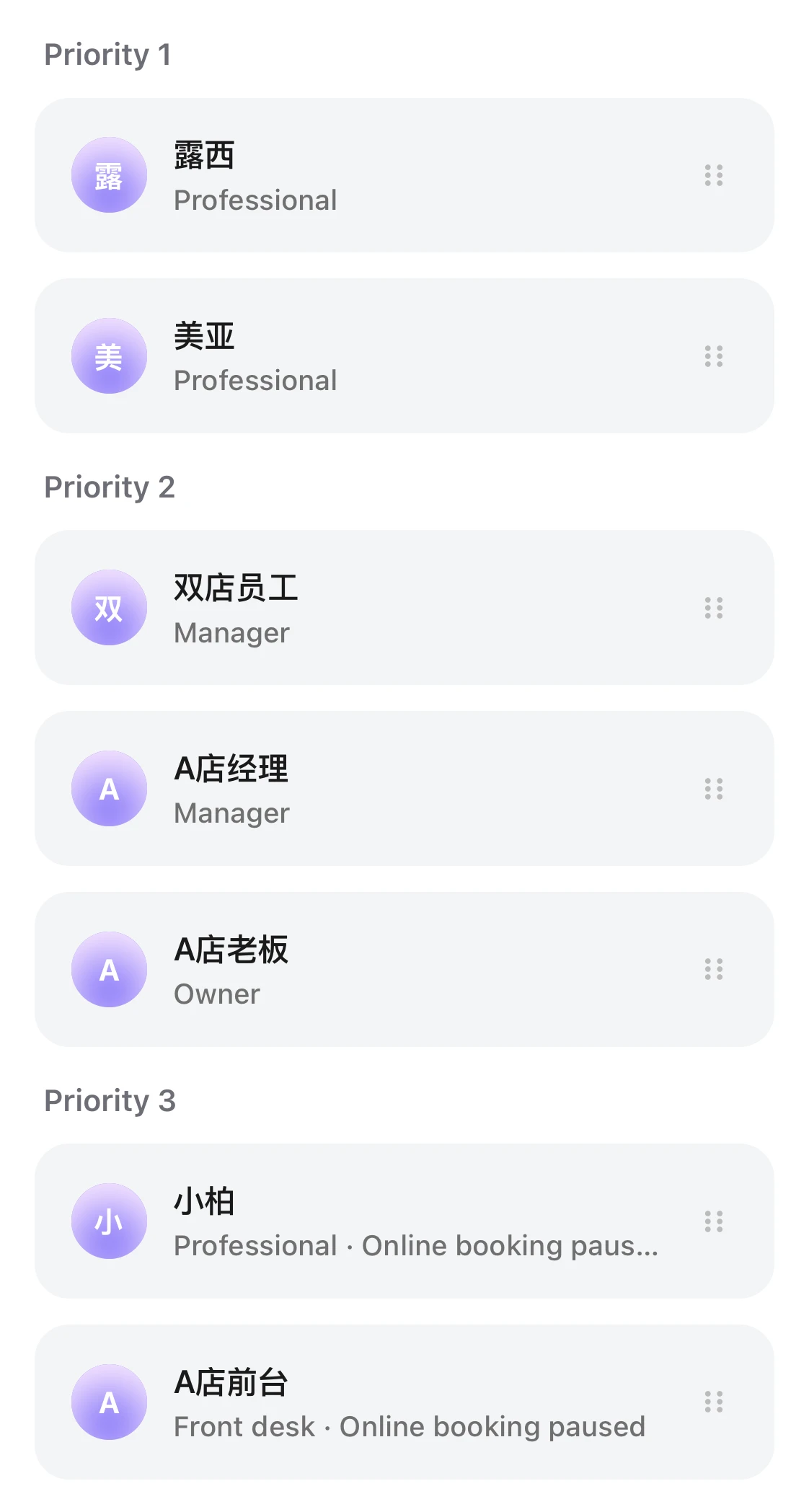
- Go to “Settings › Staff” and tap “Reorder” in the top right corner.
- Drag each staff member under “Priority 1”, “Priority 2” or “Priority 3”.
- Tap “Save”.
You can also open a staff member's profile and tap “Priority”. Both places show the levels only after “Priority levels” is on and saved.
“Off”
No levels: everyone is assigned together. Who gets an appointment depends only on the “Assignment method”.
Suits: teams with similar experience, or shops that want everyone to have the same chance.
Example: A, B and C are all free. The “Assignment method” decides who gets the appointment.
“On”
Appointments go to Priority 1 first, and to the next level only when no one in Priority 1 is free. Inside a level, the “Assignment method” decides.
Suits: shops with senior staff or a manager who should get customers first, or shops that want new staff to get customers only when everyone else is busy.
Example: A is Priority 1; B and C are Priority 2. An appointment comes in and A is free: it goes to A. If A is busy, the “Assignment method” picks B or C.
Good to know
- Kaila only picks someone free at that time, who offers the service and whose “Bookable online” is on. If no one in Priority 1 offers the service, the appointment goes to the next level.
- New staff start in “Priority 3”. You can change it in “Staff › Reorder”.
- The first time you turn it on, check “Staff › Reorder” to see which level each person is in.
- The order inside a level doesn't decide who goes first; it's only the order on your calendar and website.
- With “Take turns” and “Start over each day”, each level takes its own turns, and only Priority 1 staff take turns going first each day. On a day when everyone in Priority 1 is off, the next level takes turns.
- “Staff assignment” in “Activity” shows the order right now, split by level.
- Turning “Priority levels” off keeps everyone's level. If you turn it on again, the levels are still there.