
How do I get notifications on my computer or in a web browser?
For: Owner, Manager, Front desk, Professional
In short
In your browser, open “Settings › Notifications”, tap “Turn on notifications”, and allow notifications when the browser asks. This device then gets notified when an appointment is booked, rescheduled, or canceled.
Steps
- Open Kaila in the web browser on your computer or phone, and go to “Settings › Notifications”.
- Under “Push notifications”, find “Get notifications on this device” and tap “Turn on notifications”.
- Your browser asks if Kaila can send notifications. Choose to allow them.
- When “This device” shows “On”, switches such as “Appointments”, “Business alerts”, and “Others' appointments” appear below it.
- If you change a switch, tap “Save”.
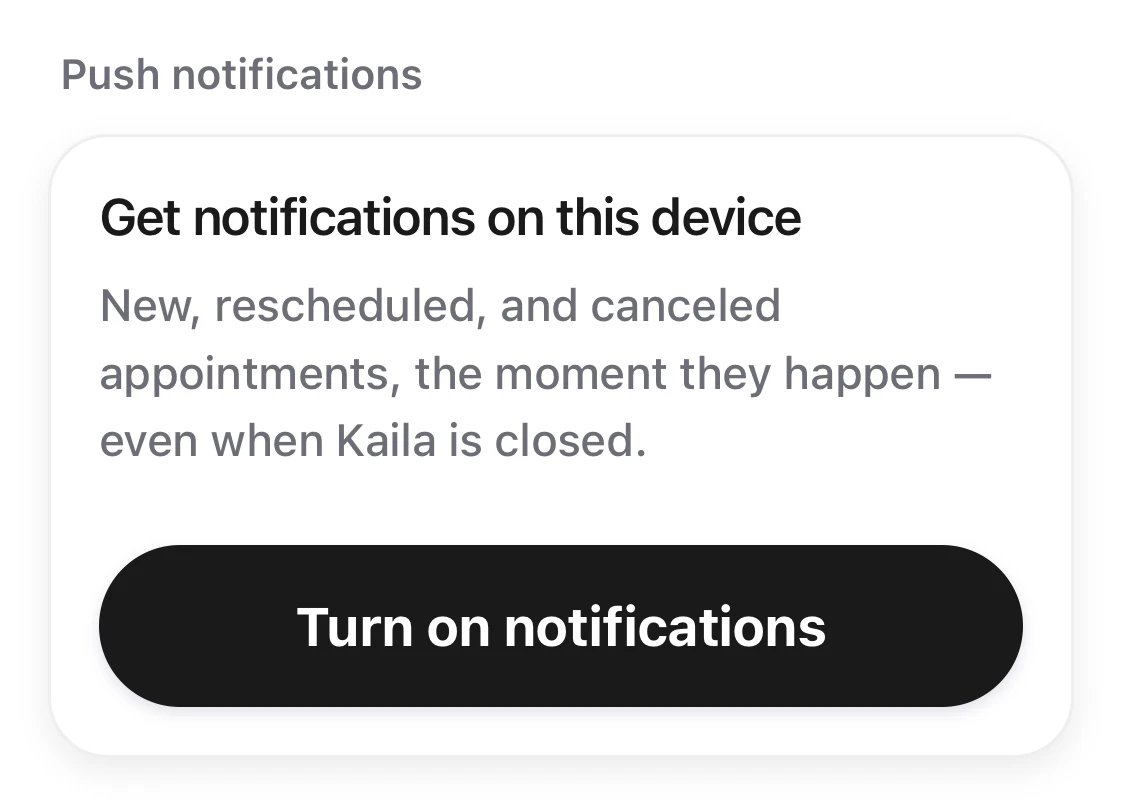
The Get notifications on this device card under Push notifications, with the Turn on notifications button.
iPhone and iPad
- You can't turn them on in Safari itself. Download the Kaila app (tap “Get the Kaila app”), or follow the steps under “If you can't download the Kaila app”.
- Those steps are: in Safari, tap “Share”, then tap “Add to Home Screen”. From then on, open Kaila from your Home Screen and follow the steps above to turn on notifications.
Good to know
- Turn on notifications on each device separately. The switches decide which notifications you get on all your devices.
- If “This device” shows “Off”, your browser is blocking Kaila's notifications. Allow notifications for Kaila in your browser's site settings.
- You can't choose a notification sound in a browser. To choose a sound, use the Kaila app.