
How do I get Kaila on an Android phone or a computer?
For: Owner, Manager, Front desk, Professional
In short
On an Android phone, get the Kaila app from Google Play. On a computer, open app.hikaila.com in a web browser. After you sign in, you see the same things everywhere.
On an Android phone
- Open the Google Play Store app on your phone.
- Search for Kaila, then tap “Install”.
- Open Kaila and sign in with your own phone number: enter your number, tap “Get code”, then enter the code from the text.
On a computer
- Open app.hikaila.com/login in your computer's web browser.
- Sign in with your own phone number: enter your number, tap “Get code”, then enter the code from the text.
- You can bookmark this page in your browser so you can open it with one click next time.
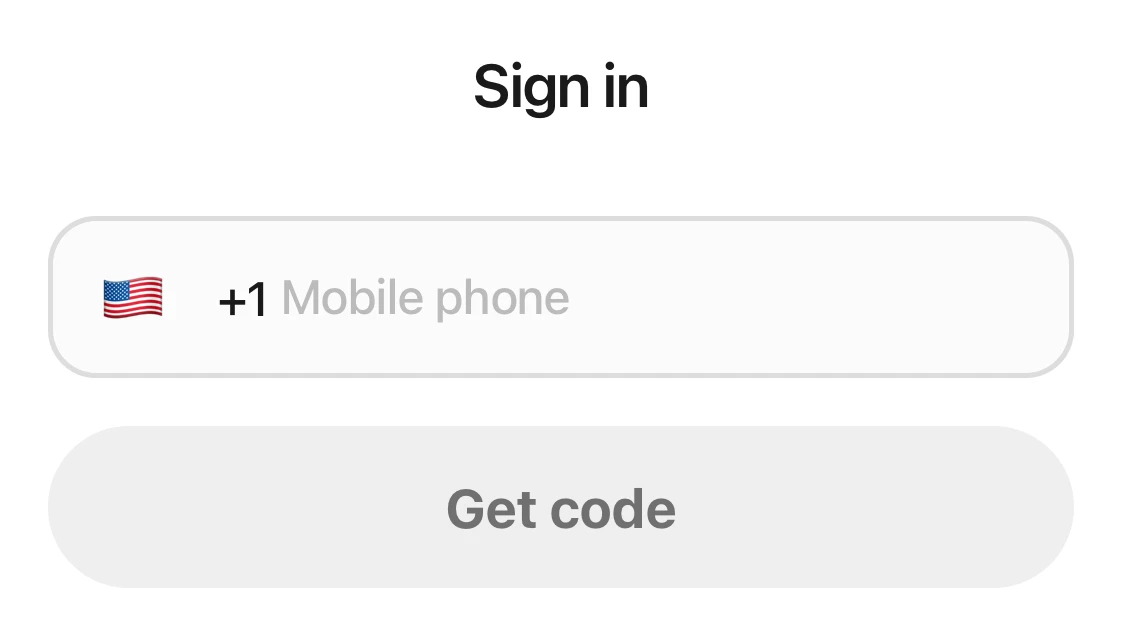
The sign-in page in a phone's web browser: the Sign in heading, the phone number field, and the Get code button.
Good to know
- Kaila is in the U.S. Google Play store. It needs Android 7 or later.
- If your phone does not have Google Play, open app.hikaila.com in Chrome. Tap ⋮ at the top right, then tap “Install app” or “Add to Home screen”.
- You can get new appointment notifications in a web browser too. Open “Settings › Notifications” and tap “Turn on notifications”.How do I get notifications on my computer or in a web browser?
- Changes you make on a computer and on a phone stay in sync.