

A day with Meiling, the owner
Meiling Chen owns Lumi Hair Studio, a hair salon in Bellevue. She works there herself, with three professionals: Nina, Amy, and Jason. Let's follow Meiling through one Monday and see how Kaila helps her keep track of every appointment.
Today's appointments
The salon opens at 10. Before that, Meiling opens the Kaila app on her phone. The first thing she sees is the “Calendar”.
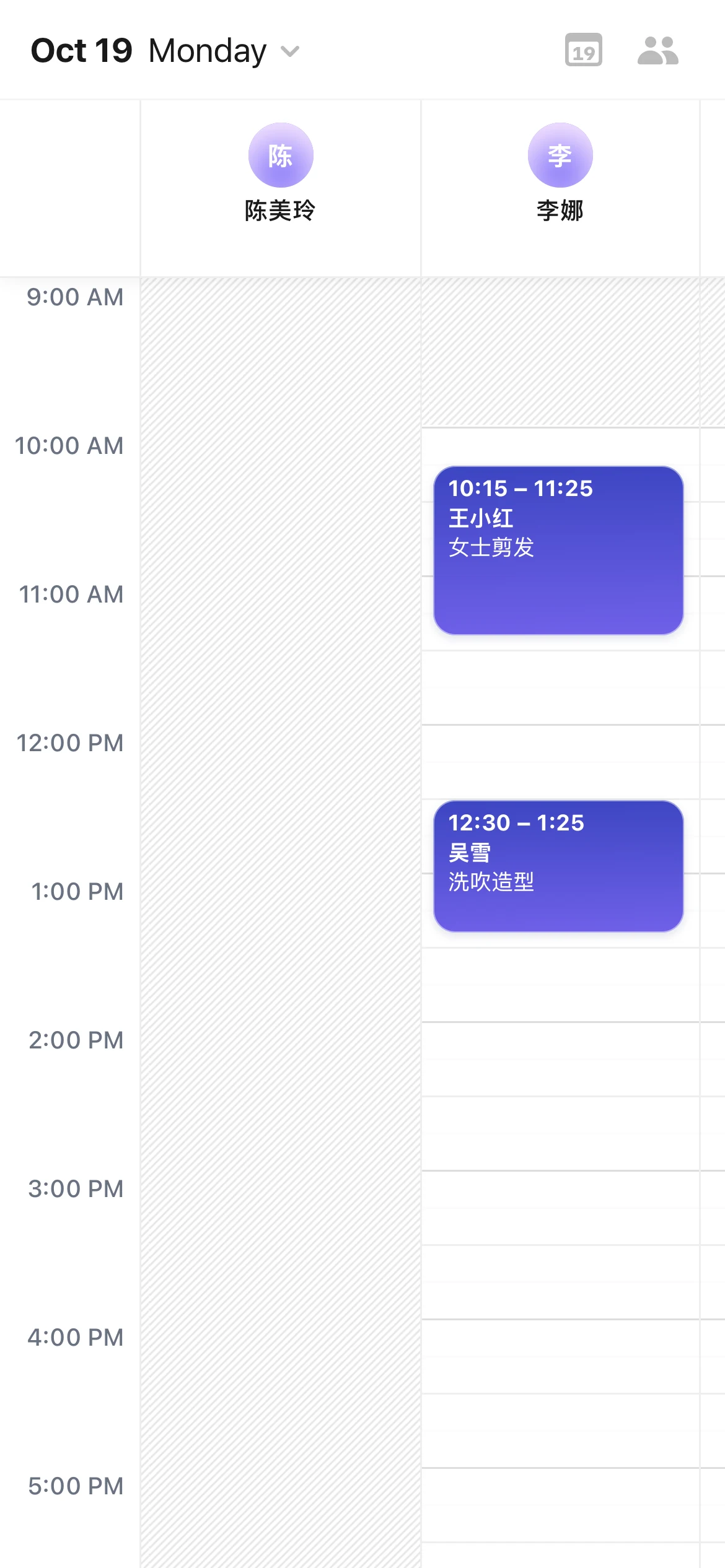
Each staff member has a column, and each appointment is a card. She can see at a glance who is doing what, and when. Today Nina has a women's haircut for Xiaohong Wang at 10:15, and a blow-dry for Xue Wu at 12:30. Meiling taps a card to open “Appointment details” and check the customer and the service. To see only some staff members, she taps the person icon at the top right and picks them in “Show staff”.
Don't have the app yet?How do I download the Kaila app on iPhone, iPad, or Mac?
A new online booking
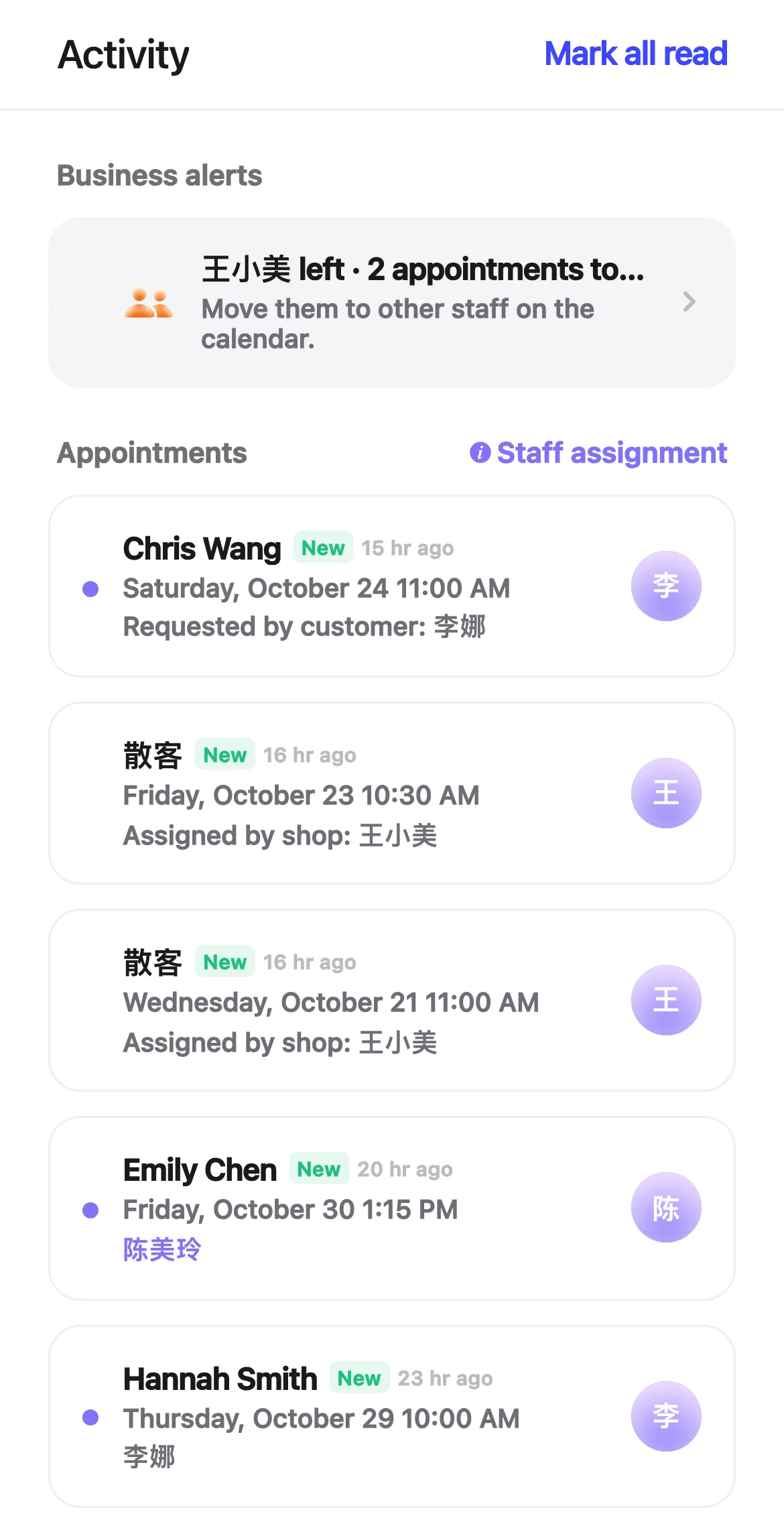
Meiling is getting the salon ready when her phone lights up: “New appointment”, with the time, the service and the staff member below it.
Chris booked by himself on the booking site. Meiling didn't have to answer the phone or write anything down. She opens “Activity”. At the top of “Appointments” there is a new card marked “New”: Chris booked Saturday, October 24 at 11:00 AM. It says “Requested by customer: Nina”, because Chris picked Nina himself. The appointment is already on the “Calendar” too.
A walk-in
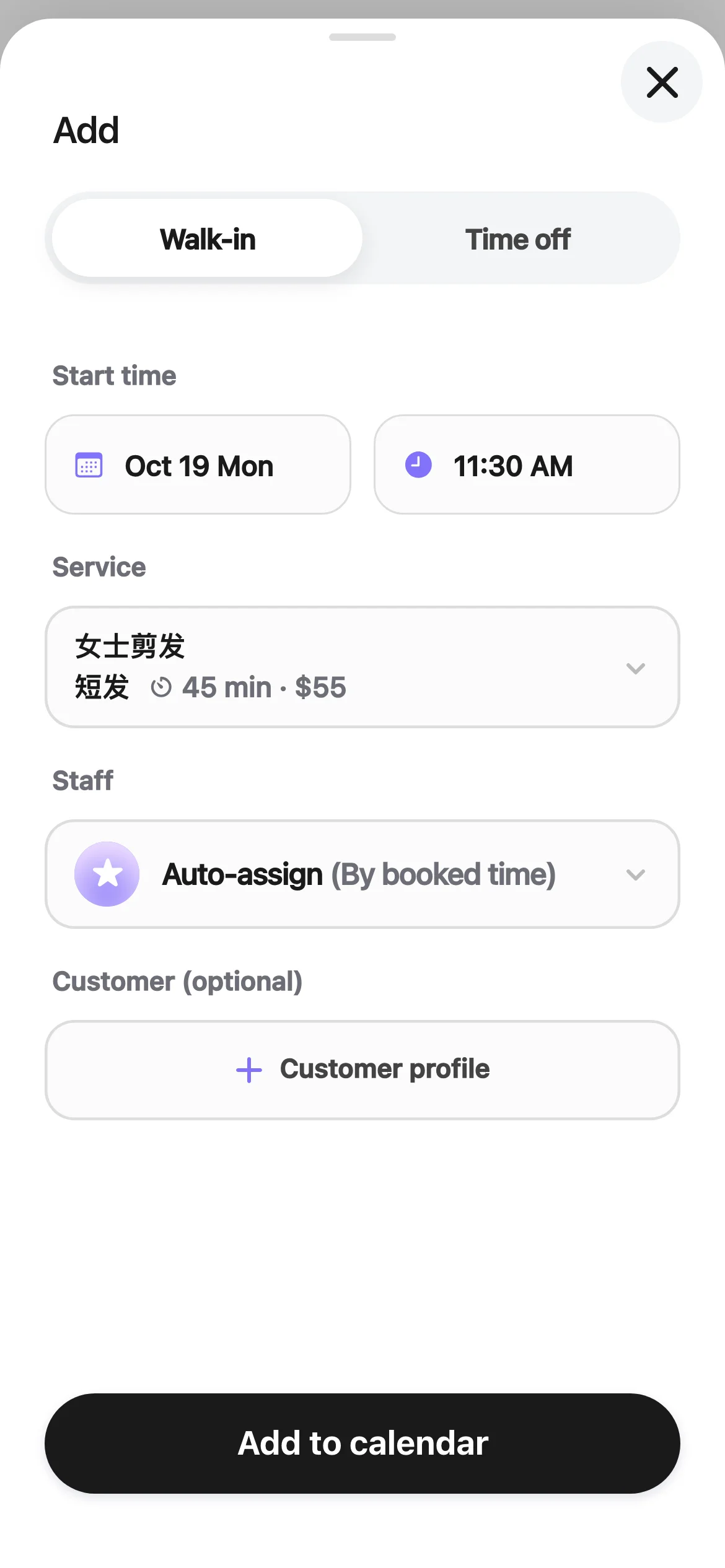
A customer without an appointment comes in and asks for a short haircut today. 11:30 is free, so she'll come back then.
On the “Calendar”, Meiling taps +. The sheet opens on “Walk-in”. She sets the time to 11:30 AM and picks the short women's haircut under “Service”. Anyone who is free can do it, so under “Staff” she picks “Auto-assign”. Kaila chooses a staff member using the business's own rules. She taps “Add to calendar”, and it's done in less than a minute.
She could also tap an empty time in one staff member's column. The appointment is then added for that person, at that time.
Xiaohong needs a later time
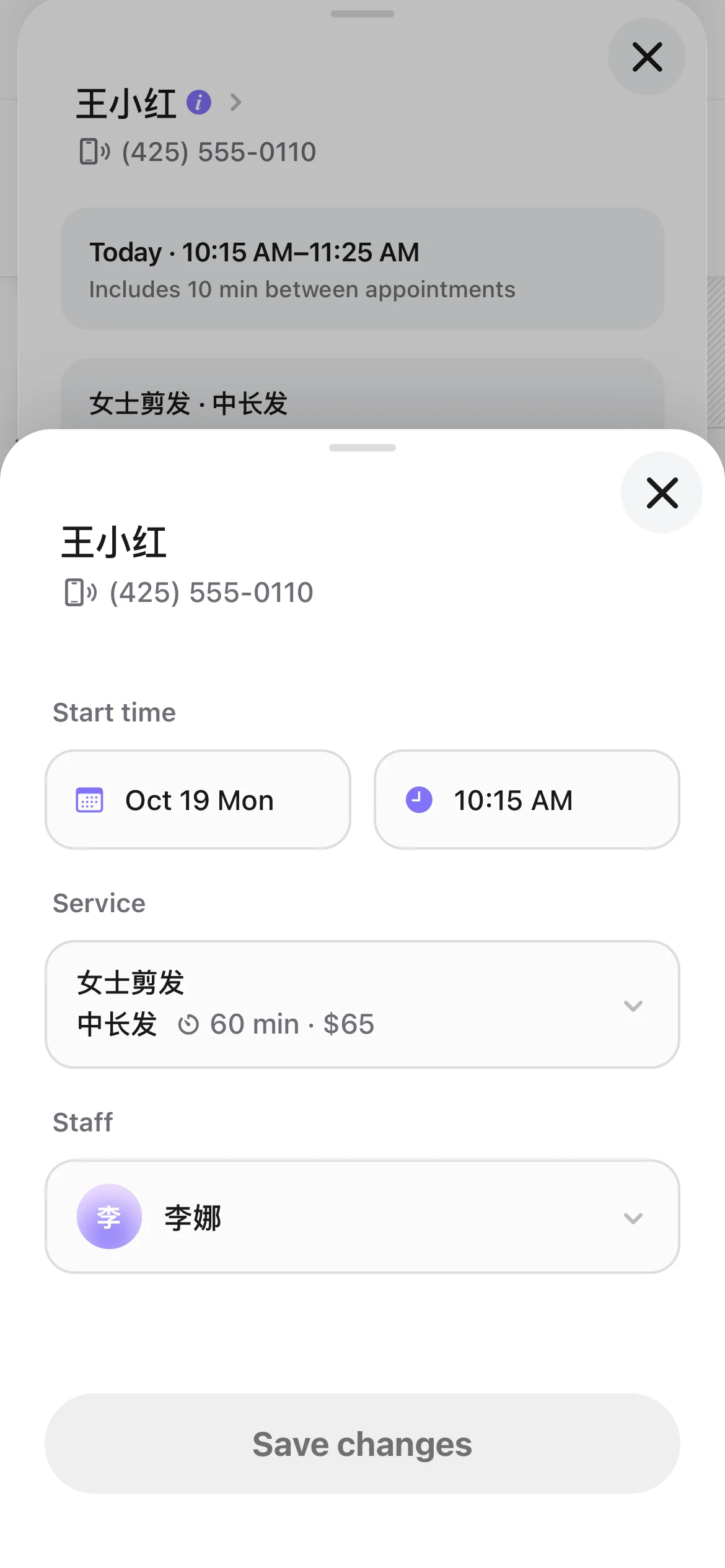
Xiaohong calls. She's stuck in traffic and wants to come one hour later.
On the “Calendar”, Meiling taps Xiaohong's 10:15 appointment, then taps “Edit”. In “Edit appointment”, she changes the “Start time” to 11:15 AM. When the business has customer texts on, or the customer left an email, there is a box at the bottom to tell the customer, like “Notify customer by text”. Checking it sends the new time. Then she taps “Save changes”.
Yesterday's no-show
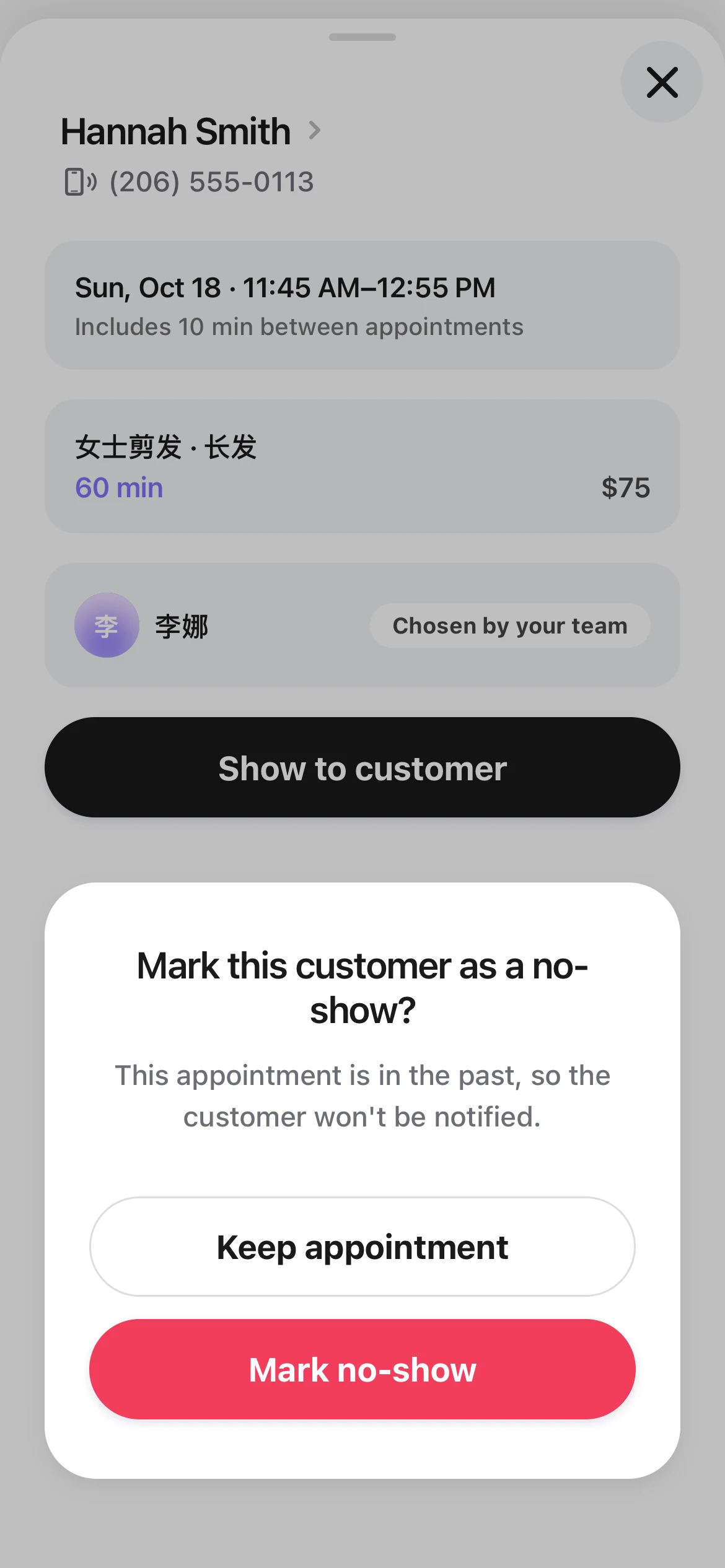
Yesterday at 11:45 AM, Hannah Smith was booked with Nina for a long-hair cut. She never came. It was a busy day, and Meiling forgot to mark it.
She swipes right on the date at the top of the “Calendar” to go back to yesterday. She taps Hannah's appointment, then taps “Mark no-show”. The screen asks “Mark this customer as a no-show?” and says “This appointment is in the past, so the customer won't be notified.” She confirms. Marking it the next day is fine.
For an appointment today, marking a no-show frees the time, so someone else can book it. Before an appointment starts, this button is gray. If you tap it, you see “Can't mark a no-show before it starts”. So when a customer is a few minutes late, there's no rush.
A look at tomorrow
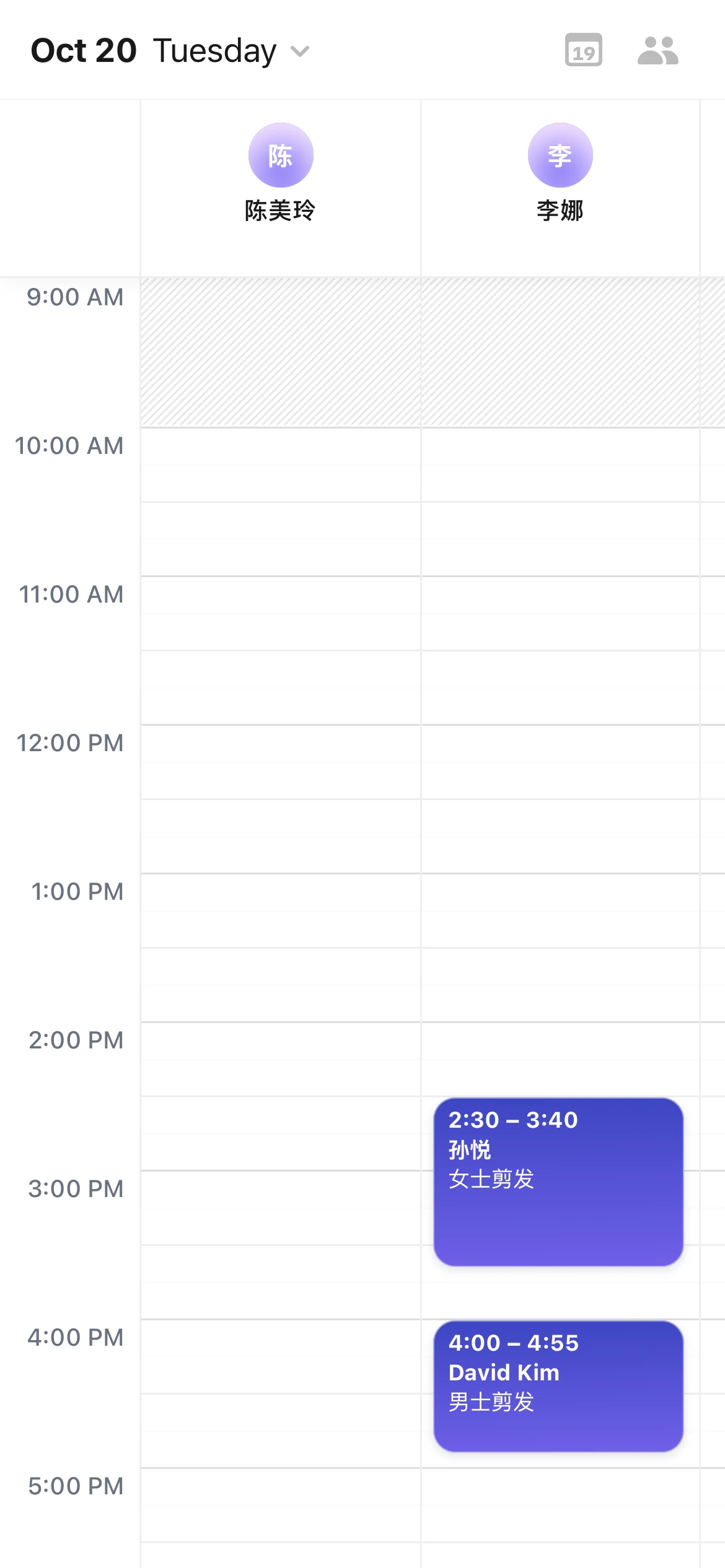
Before closing, Meiling swipes left on the date at the top of the “Calendar” to get to tomorrow, Tuesday, October 20. In the afternoon Nina has a women's haircut for Yue Sun at 2:30, and a men's haircut for David Kim at 4:00. Now Meiling knows who is coming, and when.
Tomorrow she wants to leave early in the afternoon herself. She taps +, picks “Time off”, and blocks the afternoon. Customers can't book her online during that time.
How this month is going
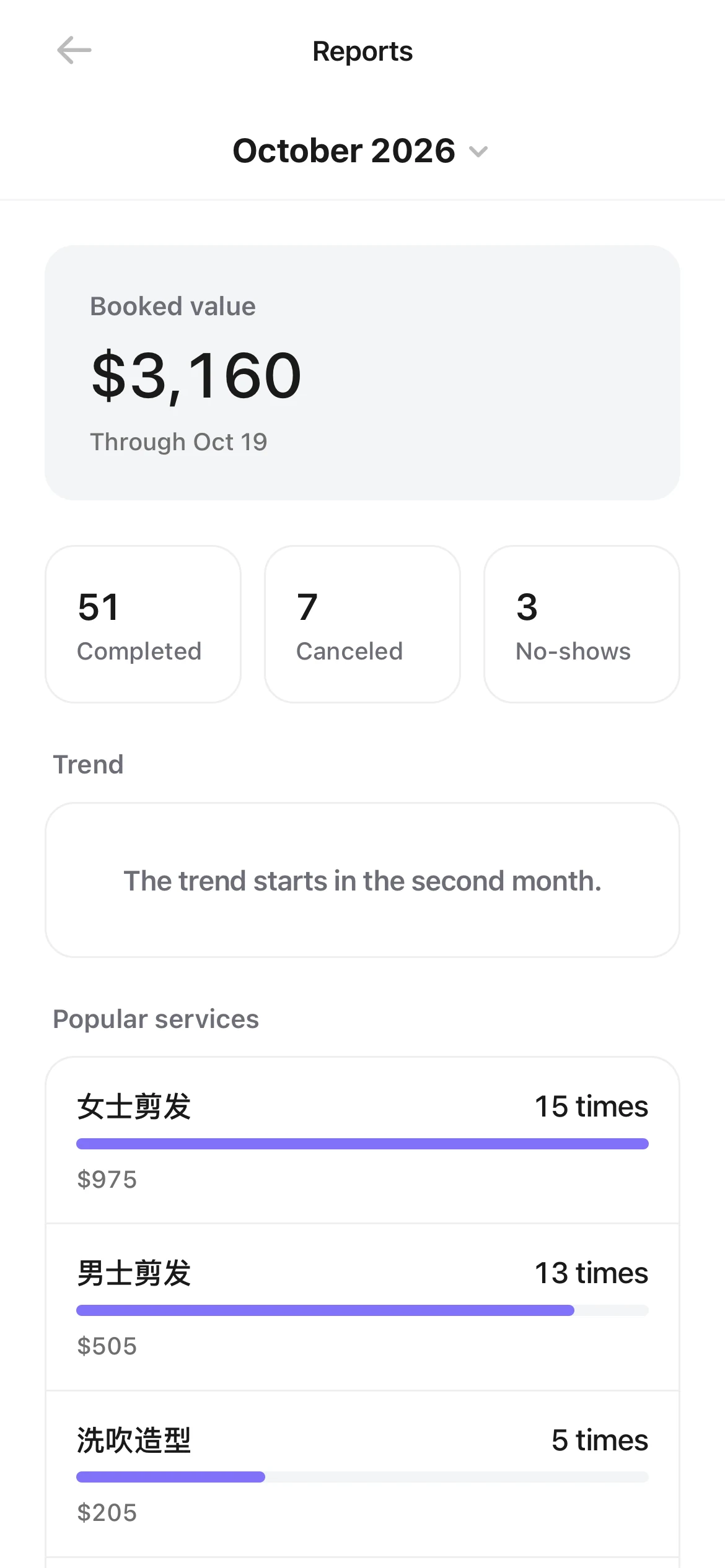
Meiling goes to “Settings › Reports”. It opens on this month, October 2026. At the top is the “Booked value”: $2,830 so far. Below it are the counts: 43 “Completed”, 7 “Canceled”, and 3 “No-shows”. Further down are the most popular services, with women's haircuts at the top. She can see how the month is going right away. To look at an earlier month, she taps the month at the top.
On the 1st of every month, a card for the month before shows up in “Activity”, and her phone gets an alert. On November 1, for example, she'll see “October report is ready”.
Features in this story
- How do I download the Kaila app on iPhone, iPad, or Mac?
- How do I get new appointment notifications on my phone?
- What does “Activity” show?
- How do I add an appointment to the calendar, including a walk-in?
- How does Kaila choose a professional when the customer doesn't?
- How do I change an appointment's time, service or staff member?
- How do I cancel an appointment or mark a no-show?
- How do I stop bookings on a holiday or a closed day?
- Where is my monthly report, and what do the numbers mean?