
Where is my monthly report, and what do the numbers mean?
For: Owner, Manager
In short
Your monthly report is in “Settings › Reports”. “Booked value” at the top is the total price of this month's completed appointments. It is not the money you actually received.
How to read it
- Open “Settings › Reports”.
- Tap the month at the top. In “Choose a month”, pick another month.
- Look at “Booked value”, then at the counts for “Completed”, “Canceled”, and “No-shows”.
- Scroll down to see “Trend”, “Popular services”, “Staff”, and “Customers”. “Customers” shows the share of “New”, “Returning”, and “Online” bookings.
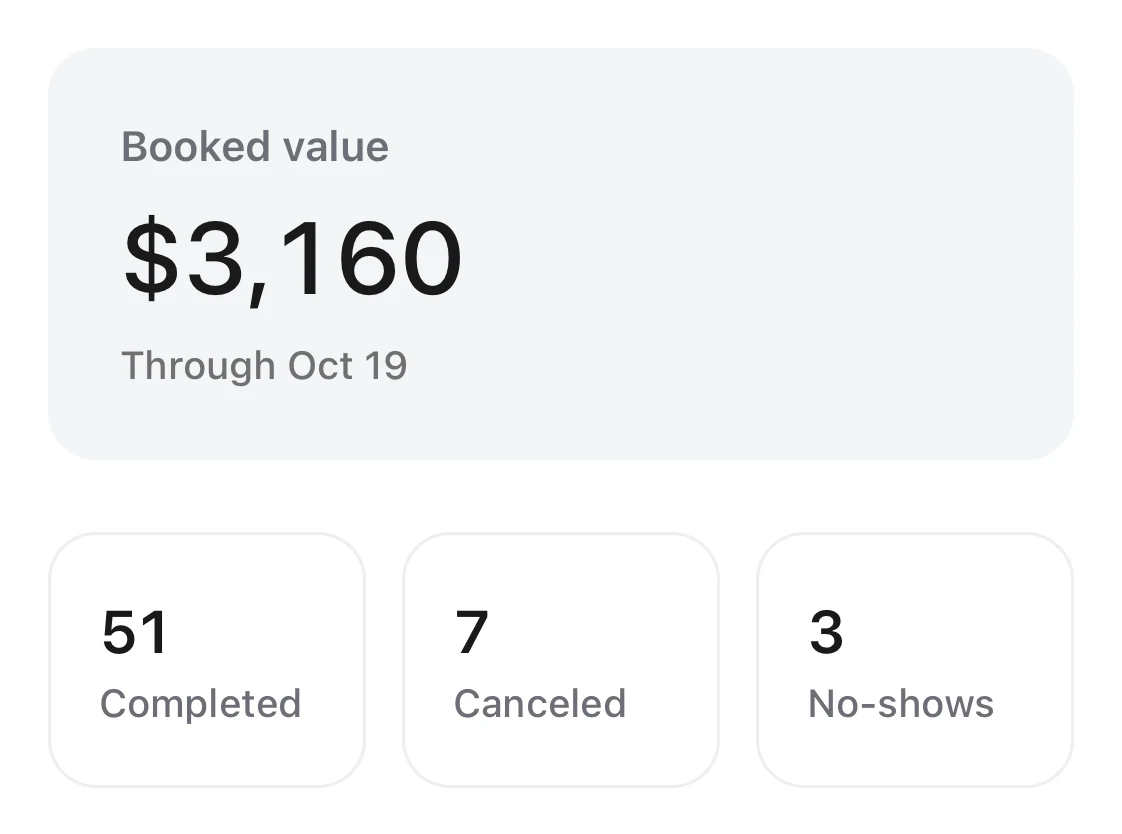
One month's booked value, with the counts of completed, canceled, and no-show appointments under it.
How the numbers are counted
- “Completed”: The appointment time has ended, and the appointment was not canceled or marked as a no-show.
- “Price TBD”: These appointments are not counted in the value. The report shows how many there are separately.
- When two staff members do one appointment together, its value is split evenly between them.
- If the month is not over yet, the report counts up to today. It compares with the same days of last month.
- “Trend” starts showing in your second month.
Good to know
- On the 1st of each month, the owner and managers see a card in “Activity”, such as “September report is ready”. Their phones get a notification too.
- Only the owner and managers can see reports.