
How do I change an appointment's time, service or staff member?
For: Owner, Manager, Front desk, Professional
In short
Tap the appointment, then tap “Edit”. You can change the date, time, service and staff member. When you are done, tap “Save changes”.
Steps
- On the “Calendar”, tap the appointment to open “Appointment details”.
- Tap “Edit” to open “Edit appointment”.
- Change the date or time under “Start time”, the service under “Service”, or the staff member under “Staff”.
- To tell the customer, check “Notify customer by email”, “Notify customer by text” or “Notify customer by email and text” at the bottom. It is not checked at first.
- Tap “Save changes”.
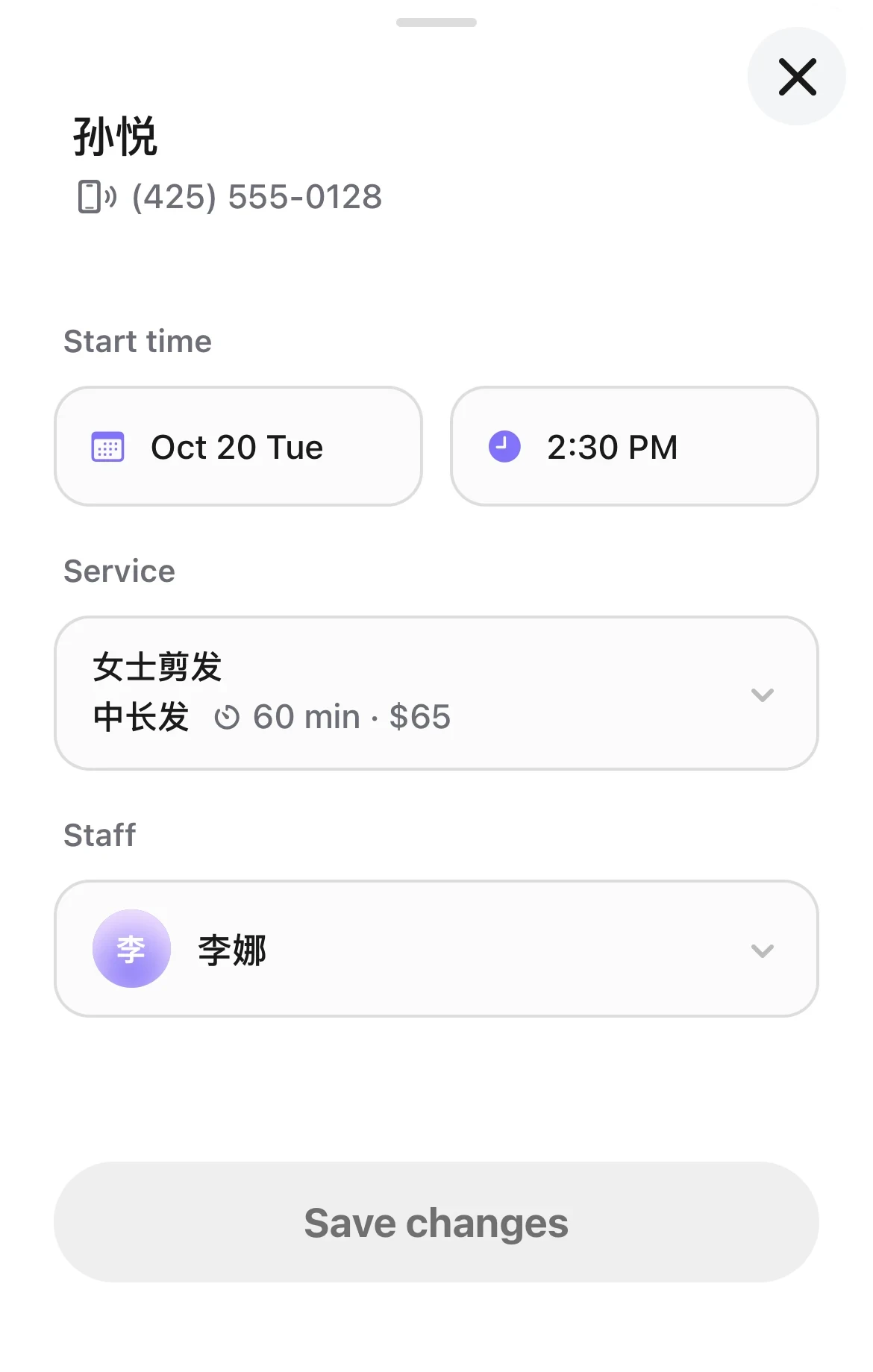
The Edit appointment form: Start time, Service, and Staff, with the notify boxes and Save changes at the bottom.
Good to know
- Owners, managers and the front desk can change any appointment. Professionals can change only appointments they are part of, and they must choose one staff member. If a professional moves an appointment to someone else, they can't change it again.
- If the new service needs a different number of staff members, you can't switch to it here. Cancel the appointment and add a new one.
- If the customer asked for the person on the appointment, changing to someone else asks first: “The customer asked for Anna”. Tap “Change to Bea” to save, or “Keep as is” to put the staff back.
- Under the staff list is “Customer requested”: on means the customer asked for this person, off means the shop made the choice. If it was set wrong, change it here. After you pick someone new, it starts off. When you save, “Activity” shows “Changed to: the customer asked for Anna” or “Changed to: the shop made the choice”.
- When a staff member leaves your business, the calendar shows “Left the team” under their name. Their upcoming appointments stay in that column. Tap each appointment, tap “Edit”, and choose another person under “Staff”.
- Notes are not changed here. Tap “Appointment note” in “Appointment details”.