
Why didn't my customer get a text?
For: Owner, Manager, Front desk, Professional
In short
Usually one of these four things is missing: texts are on for your business (and not paused), the appointment has a phone number, the customer agreed to texts, and the customer never replied STOP.
Check each one
- Are texts on for your business? The owner checks “Appointment notifications” in “Settings › Plan & billing”. It must say “On”. If texts are not on, no customer gets texts. If it says “Paused · low balance” or “Paused with your plan”, texts are not sent for now either.How do I turn on customer texts for my business?
- Does the appointment have a phone number? Without one, no text can be sent.
- Did the customer agree? Booking online counts as agreeing. For an appointment your team adds, turn on “Customer agrees to texts” in the customer's details.
- Did the customer reply STOP? If so, their details show “Opted out of texts” and “The customer opted out of texts. They can reply START to opt back in.” Only the customer can turn texts back on.
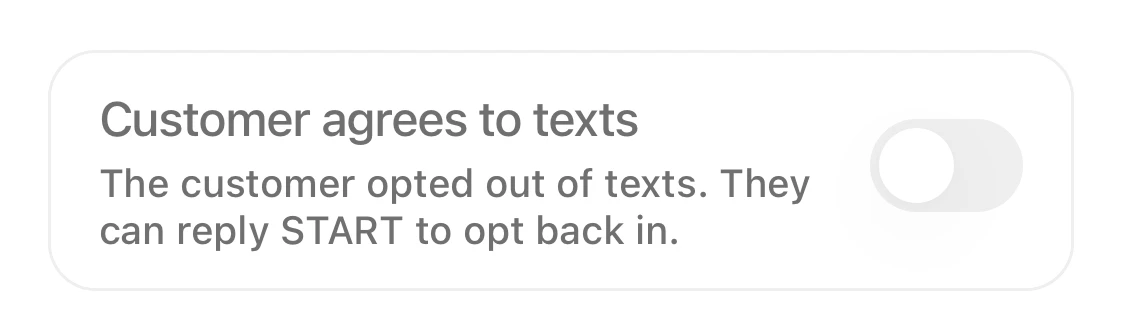
In the customer's details, the Customer agrees to texts switch is off, and it says the customer opted out and can reply START to opt back in.
Other reasons
- When your team added, changed or canceled the appointment, no notify box was checked.
- Your balance ran out. The notify box may still say “Notify customer by text”, but the text is not sent.
- Cancellation and no-show texts include a link to book again. If your booking site is offline, these two texts are not sent.
- If the appointment has already ended, canceling it or marking a no-show doesn't notify the customer.
Good to know
- Where you choose to notify the customer, you may see “Can't notify the customer”. Tap it to see why: “No phone or email. Add one in their profile” or “No text permission. Change it in their profile”.
- Only owners, managers and the front desk can change the text switch in a customer's details.
- When a text is not sent, customers who left an email still get the email.