
How do I find, add, edit or delete a customer?
For: Owner, Manager, Front desk
In short
Go to “Customers” and type in “Search name, phone, or email” at the top. A customer is added to the list by itself the first time they book with a phone number.
Steps
- Go to “Customers”.
- To find a customer, type their name, phone or email in the search box. Tap “All” or “Blocked” to switch lists.
- To add a customer, tap “+ Add customer”. Fill in “Name” and “Phone number”. “Email” and “Customer note (optional, visible to all staff)” can stay empty. If the customer agrees to get texts, turn on “Customer agrees to texts”. Tap “Confirm”.
- To change their details, tap the customer, tap “Edit”, make your changes, and tap “Save”.
- To delete a customer, tap the customer, tap “Delete customer”, and confirm.
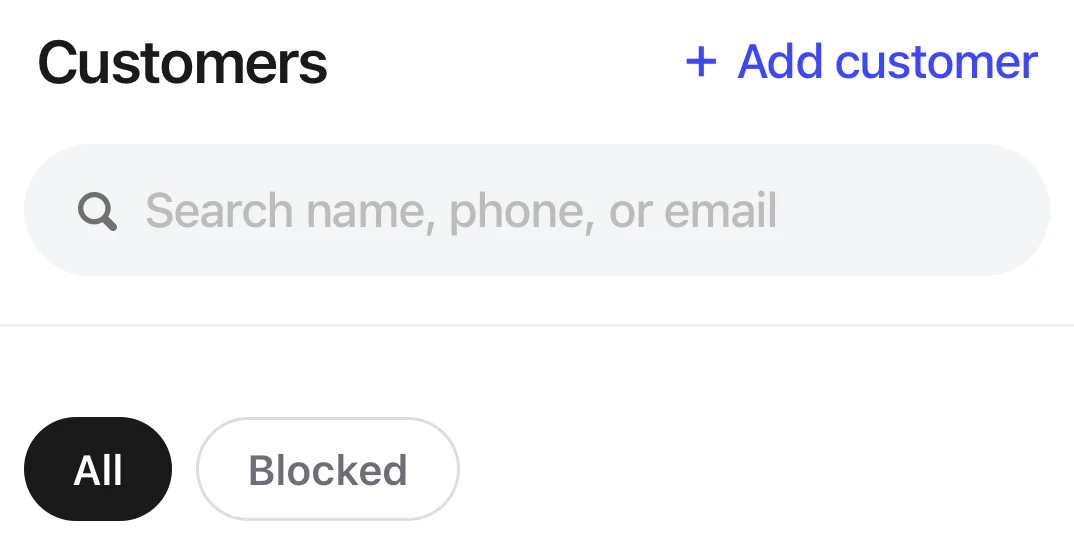
The Customers page: the search box, the All and Blocked lists, and Add customer at the top right.
Good to know
- A deleted customer can't be brought back. Their past appointments stay, with the name, phone and email used to book them.
- If a phone number you enter already belongs to a customer, you see whose number it is. You can open that customer's details from there.
- Only owners, managers and the front desk can open “Customers”. Professionals don't see this tab.