
How do I turn on customer texts for my business?
For: Owner
In short
Appointment notifications: confirmations, changes and cancellations reach your customers on time by text, plus one reminder before each visit, so fewer no-shows. Texts are charged per segment from your “Text & call balance”.
Steps
- Go to “Settings › Plan & billing” and tap “Appointment notifications”.
- Tap “Turn on appointment notifications”, check the price, then tap “Turn on”. If your balance is too low, you add funds at the same time, and the button shows an amount like “Pay $10.00”. If you don't have a card yet, the button says “Add card”.
- When you see “Appointment notifications are on”, you're done.
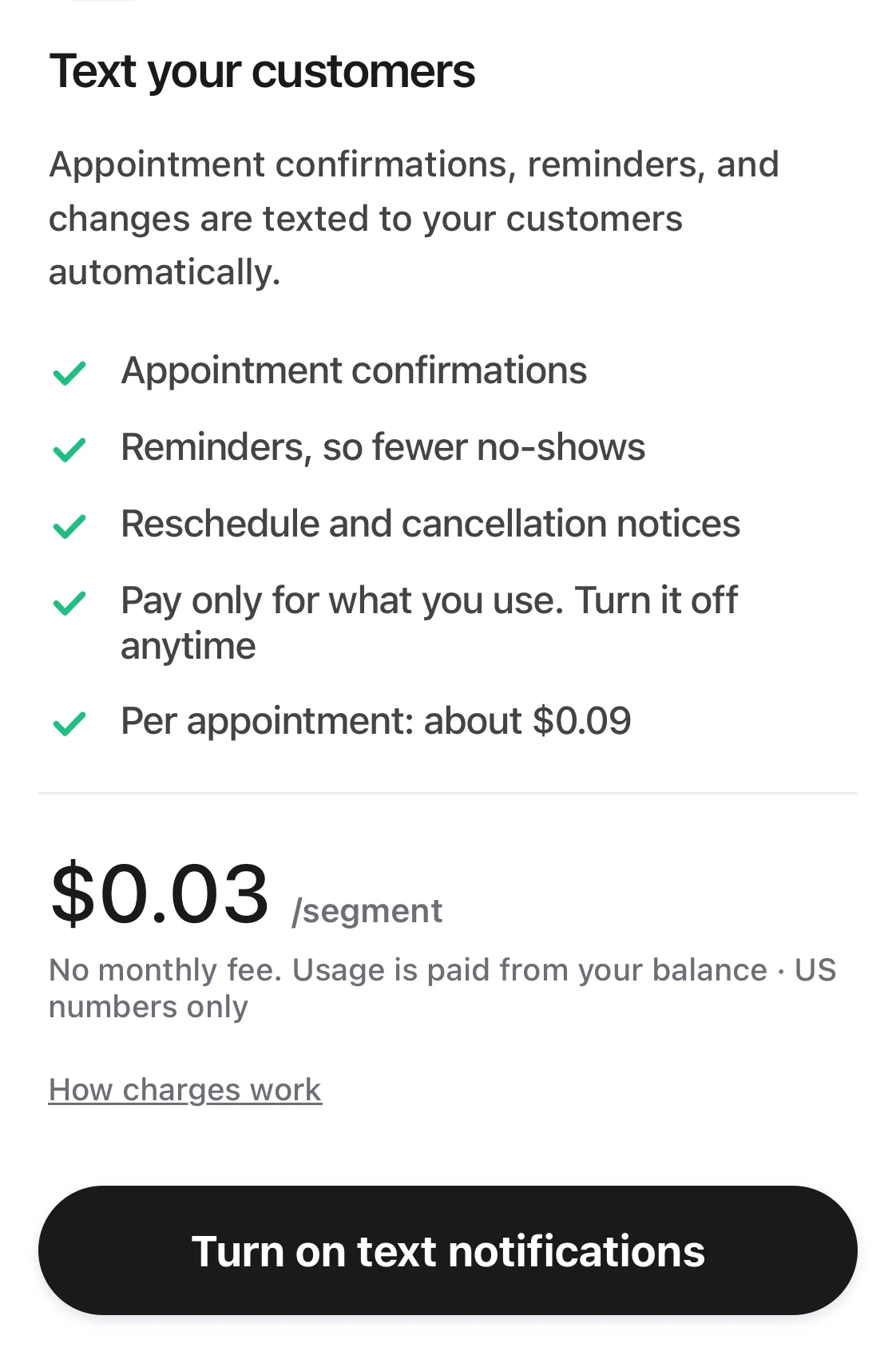
The Appointment notifications page: what it does for your customers, the price per segment, and the Turn on appointment notifications button under it.
Good to know
- “No monthly fee · Paid from your balance”. When your balance runs out, texts pause and “Appointment notifications” shows “Paused · low balance”. Tap “Add funds to resume texts”. Customers with an email address still get emails.
- Only the owner can turn them on.
- After the “Base plan” ends, subscribe first.
- To stop, tap “Turn off appointment notifications” on the same page.
- In the Kaila app on an iPhone, tap “Open in browser” in “Plan & billing”.
- Only customers who agreed to texts get them.Why didn't my customer get a text?