

A day with Amy, a professional
Amy is a professional at Lumi Hair Studio. She cuts hair all day and uses Kaila to see her appointments. Let's follow her through one Monday and see how simple Kaila is for a professional.
Signing in with her phone number
Amy has a new phone, so she needs to sign in to Kaila on it. Her phone number didn't change. It is still the number the business has on file.
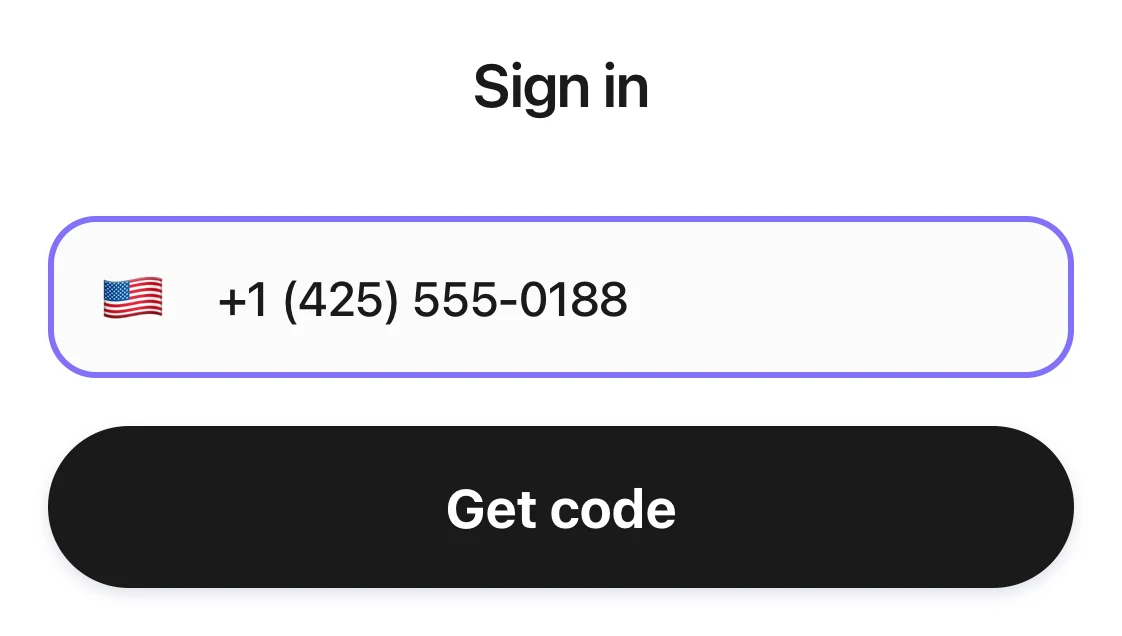
Amy opens the Kaila app and sees “Sign in”. She enters her number in “mobile phone” and taps “Get code”. The text comes quickly. She types the 6-digit code, and when she types the last digit, she's in. She doesn't need a password, and she doesn't have to ask the owner for a code.
Her own appointments
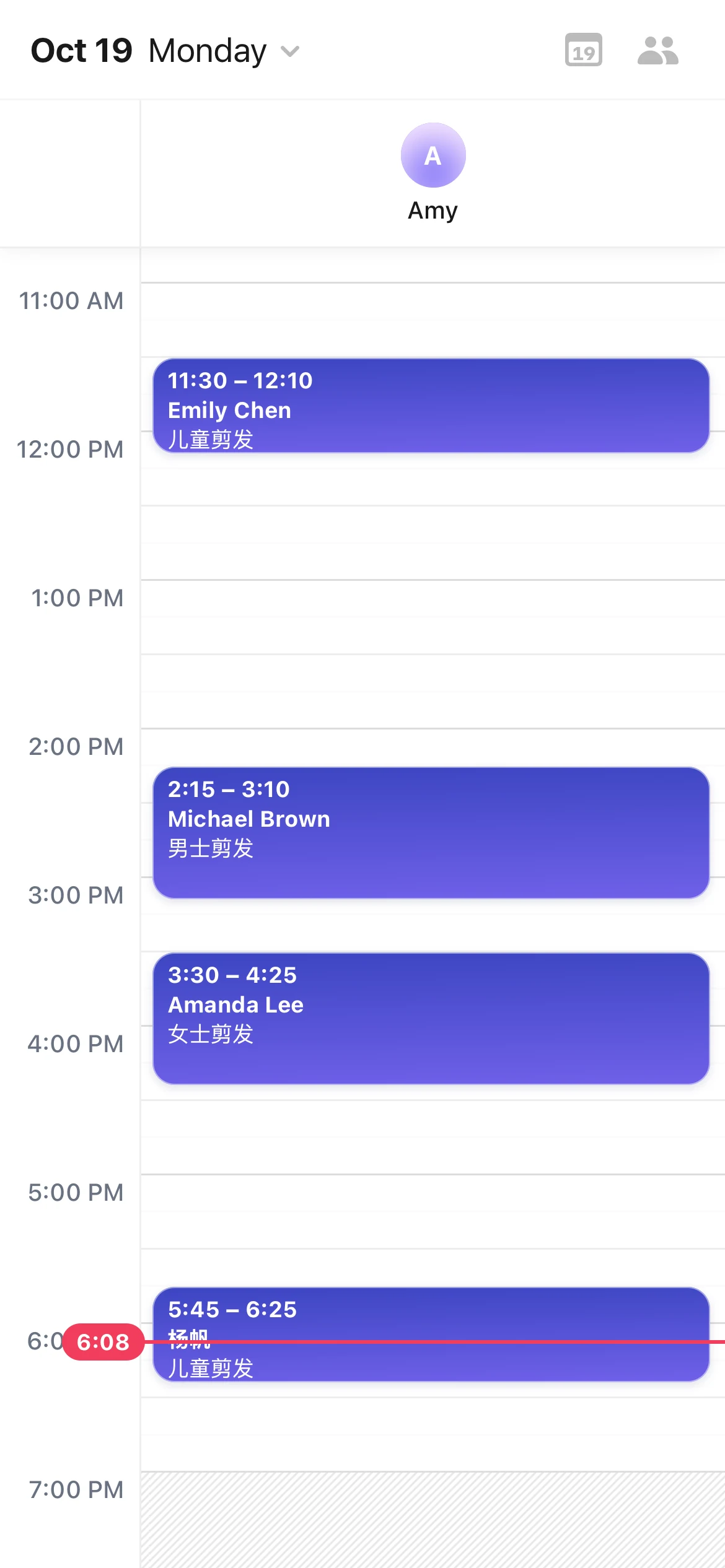
After she signs in, Amy sees the “Calendar”. At first it shows only her own column, with all of her appointments for today: a kids' haircut for Emily Chen at 11:30, a men's haircut for Michael Brown at 2:15, and a women's haircut for Amanda Lee at 3:30.
To see how busy her coworkers are, she taps the person icon at the top right and adds them in “Show staff”. She taps a card to see the “Appointment details”.
A new booking in Activity
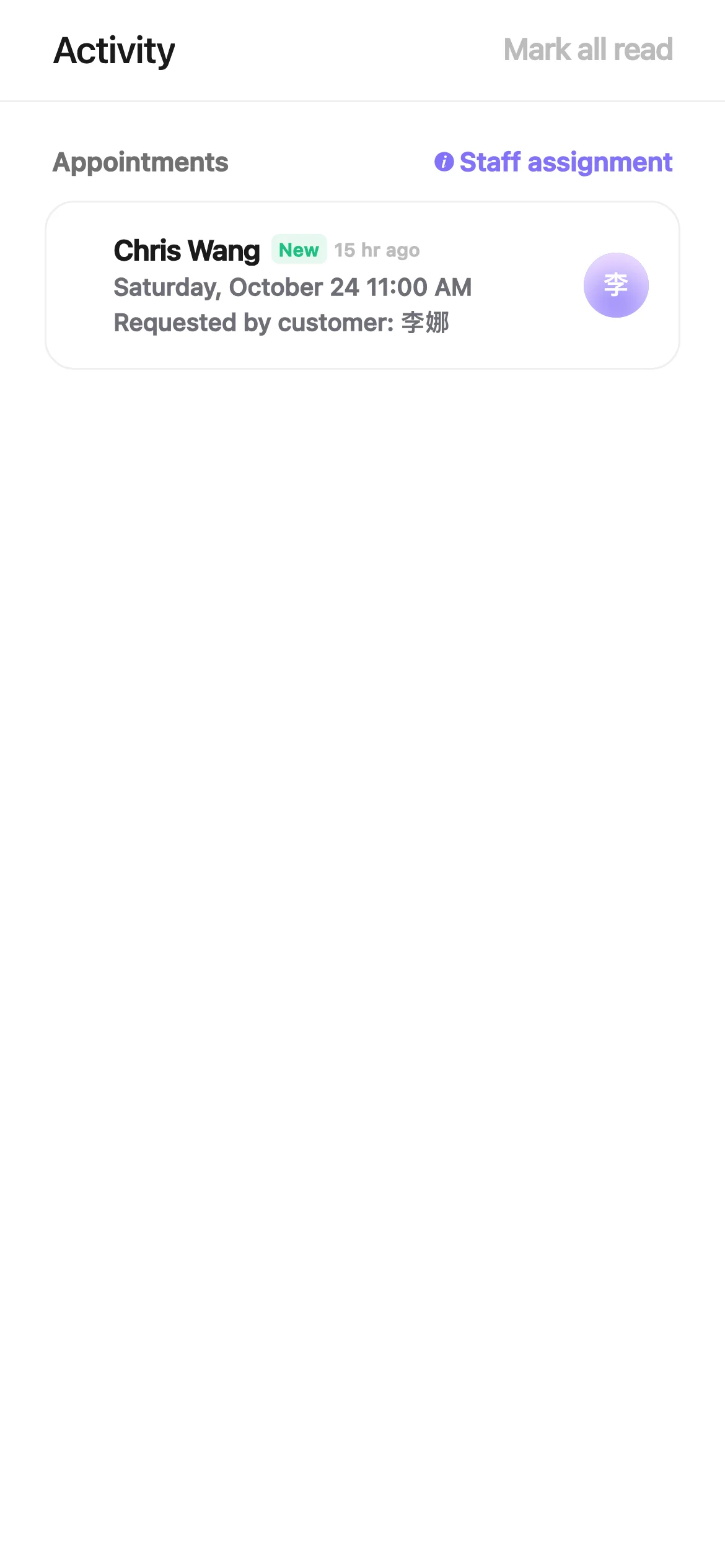
Amy opens “Activity”. Under “Appointments” there is a card marked “New”: Chris Wang booked Saturday, October 24 at 11:00 AM. It says “Requested by customer: Nina”. This is a new appointment for her coworker Nina, not for Amy.
A professional sees coworkers' new appointments in “Activity” too. But by default they don't send her an alert, so they don't bother her. To change this, she goes to “Settings › Notifications” and picks an option in “Others' appointments”. For a professional, it starts on “Show only”.
When a customer books Amy herself online, or cancels or moves one of her appointments, Kaila sends her an alert, like “New appointment”, with the time and the service. Alerts never show the customer's name.
Lunch
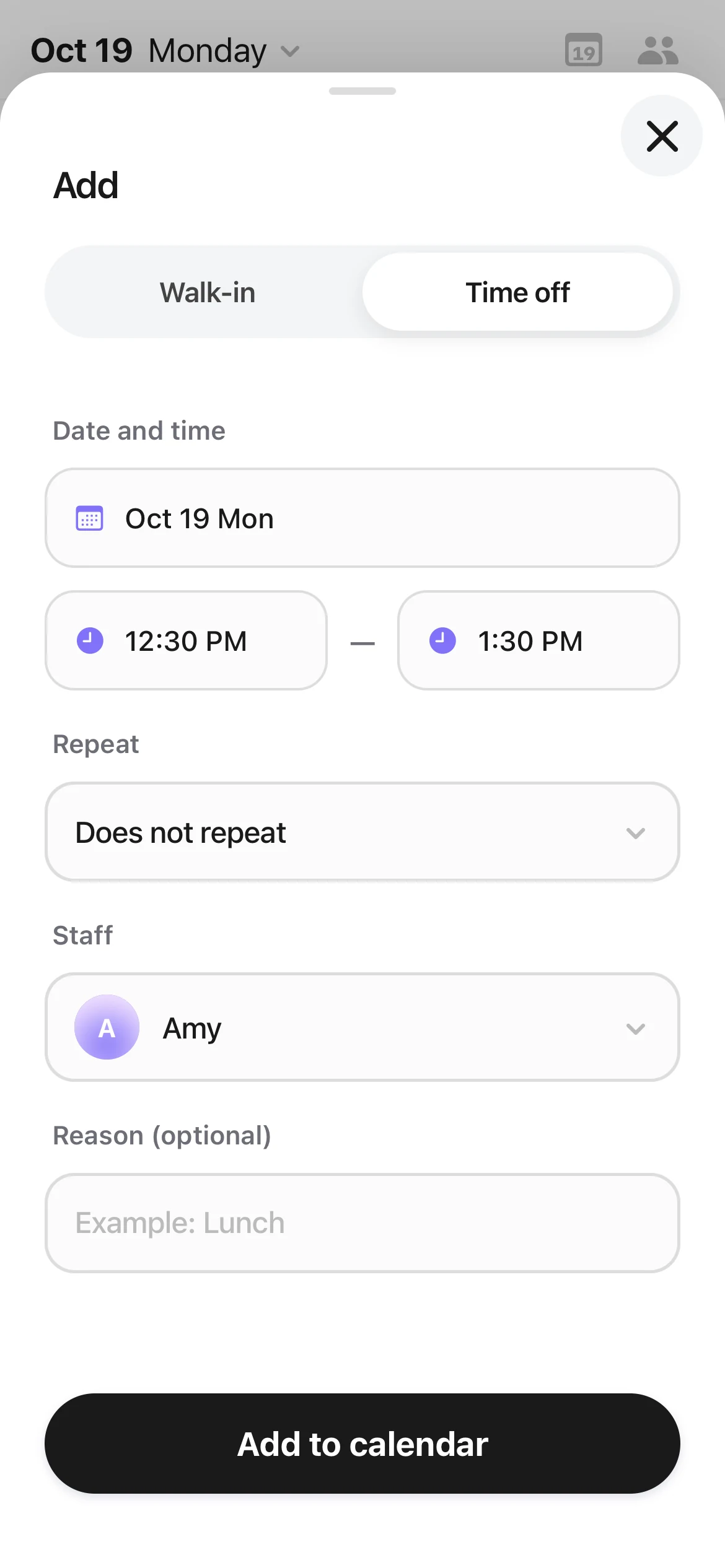
Emily Chen's haircut was done at 12:10. Amy wants lunch from 12:30 to 1:30. On the “Calendar”, she taps + and picks “Time off”.
Under “Date and time”, the date is today, and she sets 12:30 to 1:30. Under “Staff” she picks herself. She can leave “Reason (optional)” empty. She taps “Add to calendar”. For that hour, customers can't book her online.
A whole day off works the same way. She just picks the whole day.
Yesterday's no-show
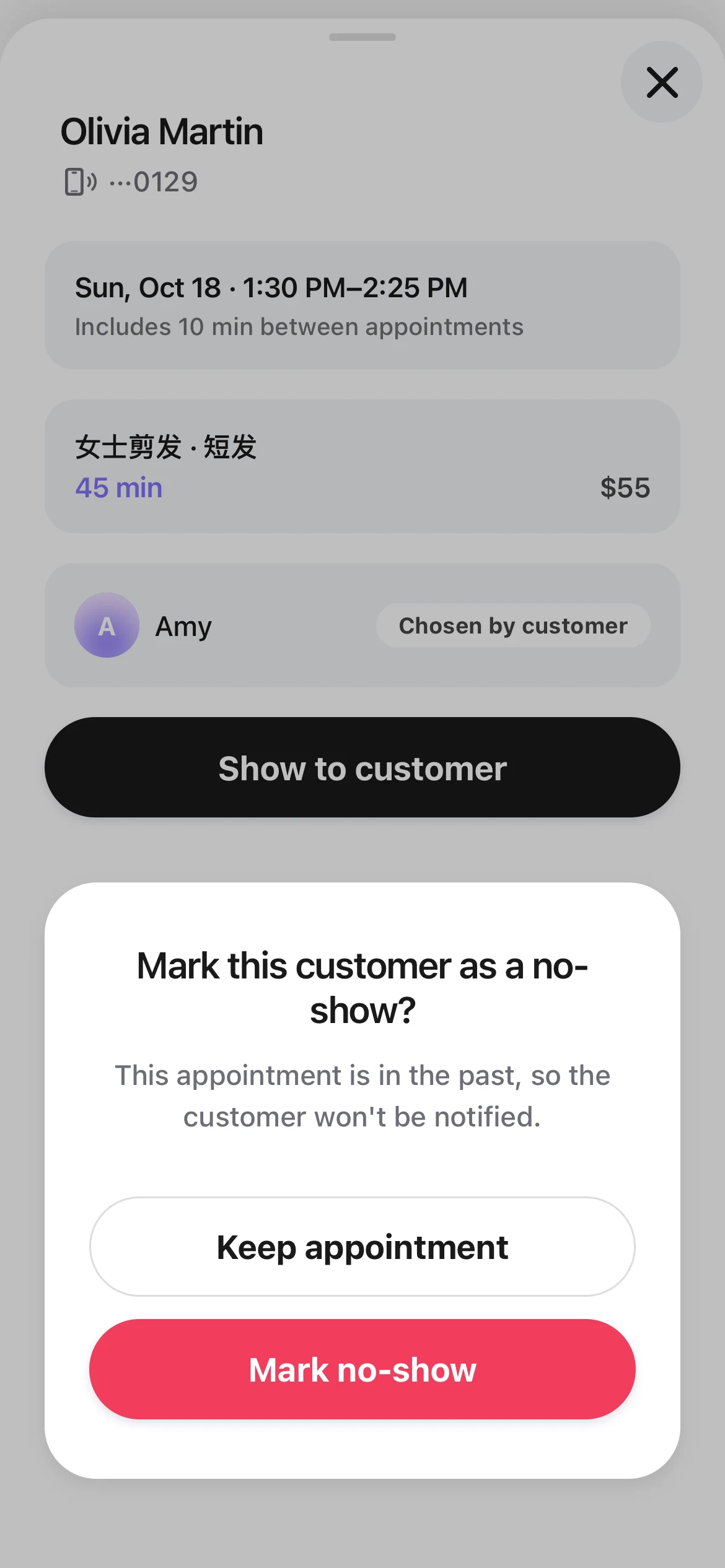
Over lunch, Amy remembers that her 1:30 customer yesterday, Olivia Martin, never came. She hasn't marked it yet.
She swipes right on the date at the top of the “Calendar” to go back to yesterday. She taps Olivia's appointment, then taps “Mark no-show”. The screen asks “Mark this customer as a no-show?” and says “This appointment is in the past, so the customer won't be notified.” She confirms, and that's it.
What the owner takes care of
Amy only needs to look after her own appointments. The owner and managers take care of the rest of the business:
- She can see her coworkers' appointments, but she doesn't get “Edit”, “Mark no-show”, or “Cancel appointment” on them. When she opens Nina's appointment with Hannah Smith from yesterday, she can only look.
- In “Settings”, she only sees “Services & prices” and “Notifications”. She can look at the services, but she can't change them.
- She doesn't have the “Customers” page.
If you work at the front desk
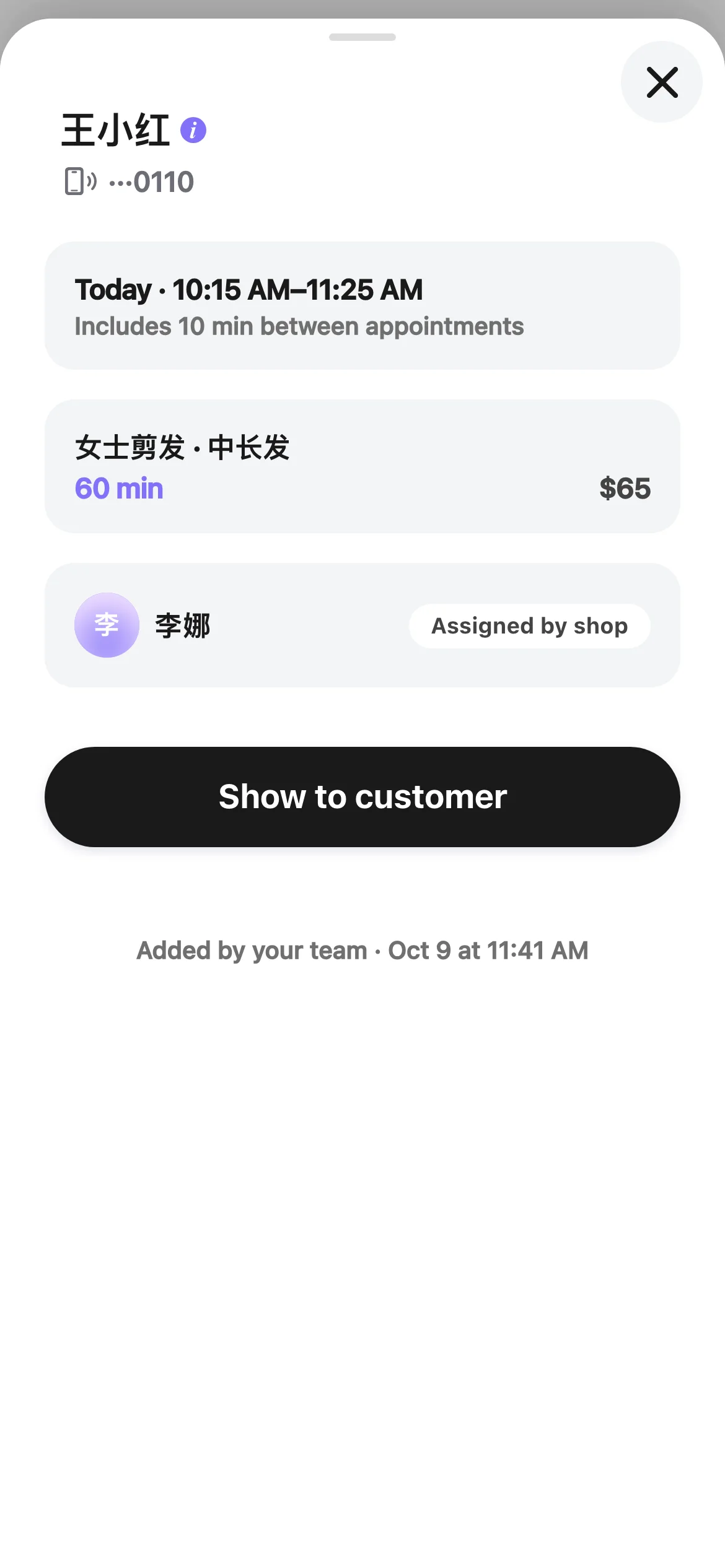
A day at the front desk is much the same, but you look after the whole business. The “Calendar” opens with every staff member showing. You can edit and cancel anyone's appointments. The front desk also has the “Customers” page, where you can find and add customers. For coworkers' new appointments, the setting starts on “Show and notify”.