
How do I remove a staff member?
For: Owner, Manager
In short
Open the staff member's profile, tap “Remove from team” at the bottom, and confirm. You can remove them even if they still have upcoming appointments. Afterward, move those appointments to other staff on the calendar.
Steps
- Go to “Settings › Staff” and tap the staff member.
- Tap the red “Remove from team” at the bottom.
- You see “Remove Maria?”. If they have appointments, it also says “Maria still has upcoming appointments: 2.” and “After you remove them, move these appointments to other staff on the calendar.”
- Tap “Remove” to confirm.
- You see “Removed”, and the staff list opens again.
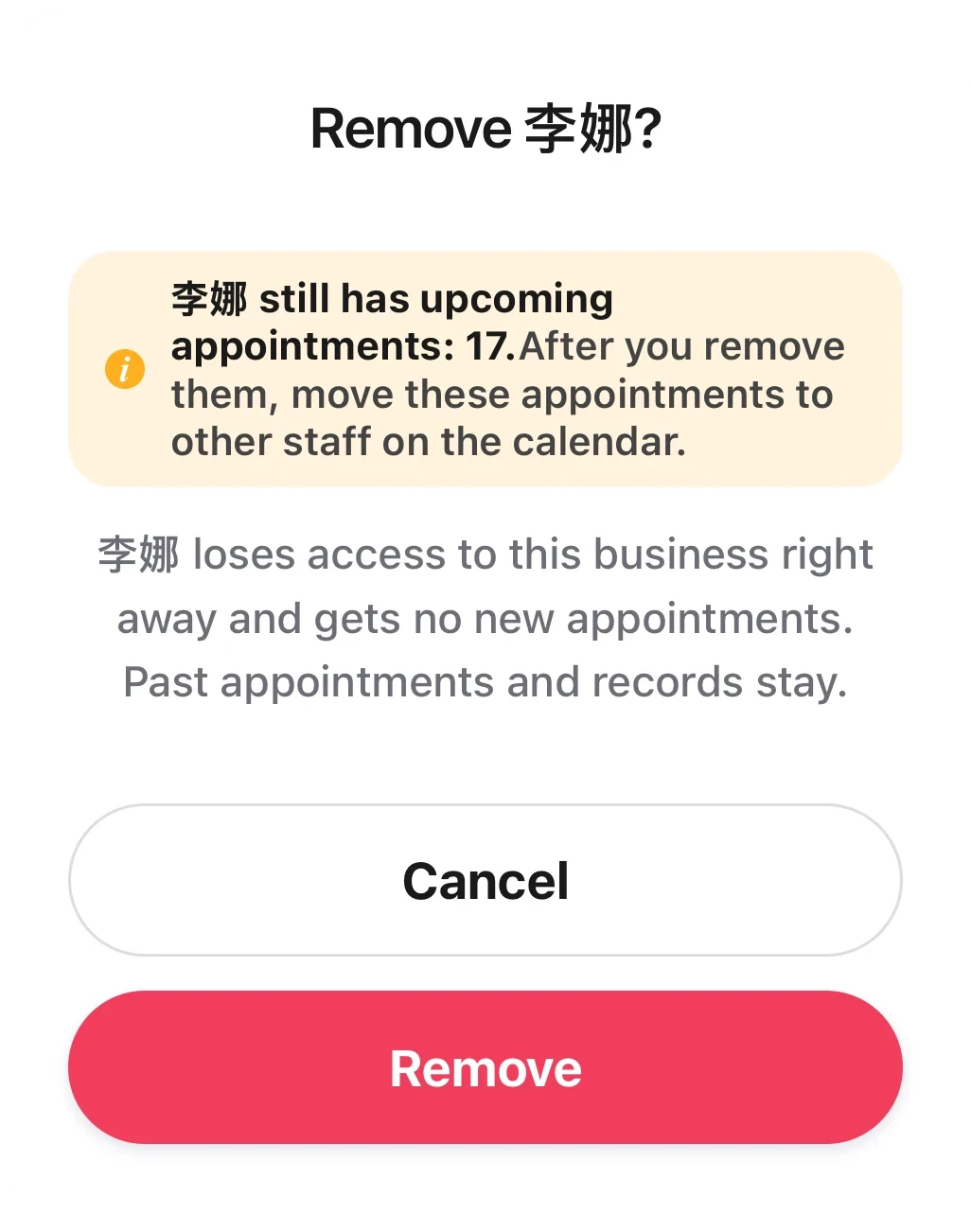
The confirm dialog for removing a staff member: a yellow note says how many upcoming appointments they still have to move to other staff on the calendar.
After you remove them
- If they had no upcoming appointments, they leave the staff list right away.
- If they had appointments, they stay in “Settings › Staff” as “Left the team” until all their appointments are moved. Their profile says “Once these appointments are moved to other staff, this person leaves the list.”A staff member left. What happens to their appointments?How do I change an appointment's time, service or staff member?
The last person customers can book online
If they are the last person customers can book online, the dialog says in red: “Maria is the last person customers can book online. After you remove them, customers can't book online until you turn on online booking for someone else.” You can still remove them.
If you can't remove them
- The owner can't be removed. On the owner's profile, “Remove from team” is gray. Tapping it shows “The owner can't be removed”.
- When a manager opens another “Manager” profile, there is no “Remove from team”. Only the owner can remove a manager.
Good to know
- Once removed, they lose access to your business right away and get no new appointments. Their past appointments and records stay.
- If they come back, add them again.How do I add a staff member?