
How do I turn on the phone assistant?
For: Owner
In short
In “Settings”, tap “Phone assistant” at the top, then tap “Turn on the phone assistant”. Choose a number and pay. When the payment goes through, the phone assistant starts answering calls right away.
The phone assistant gives your business a new phone number. It answers every call. A caller who presses 1 gets a text with the link to your online booking.
Steps
- Open “Settings” and tap “Phone assistant” in the card at the top.
- Read the introduction. It shows the monthly fee and the usage prices. Tap “Turn on the phone assistant”.
- Under “Choose a number you like”, pick a number. The numbers use the area code of your business address. To see other numbers, tap “Show more”. If there are no numbers there, tap “See other number options” to see numbers near your business.
- Tap “Use this number”.
- Check the payment details and tap the pay button, which shows the amount. If you don't have a card yet, the button says “Add card”. Enter your card first.
- When you see “The phone assistant is on”, you are done.
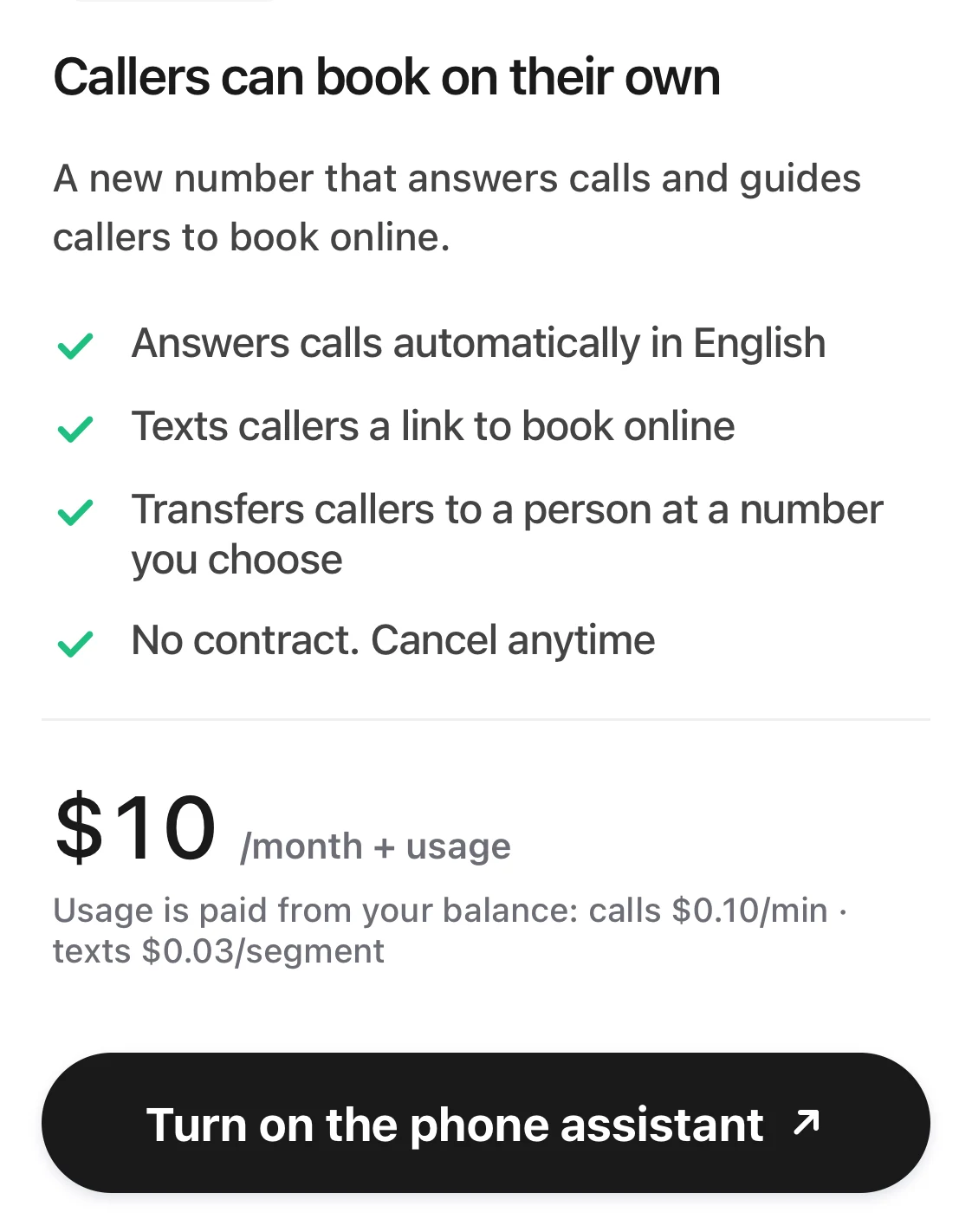
The phone assistant introduction: what it does, the monthly price, and Turn on the phone assistant below.
Good to know
- When the new number starts, call transfers are off, and texts from customers get no reply.How do I change call transfers and text replies, or pause the phone assistant?
- The phone assistant “Answers calls automatically in English”. To hear what callers hear and read the texts they get, tap “Preview calls and texts” on the phone assistant screen.
- If your balance is too low for a call, the payment adds a line: “Text & call balance refill”. Calls and texts are paid from this balance.
- Only the owner can turn it on. Until it is on, only the owner sees “Phone assistant” at the top of “Settings”.
- If you see “The number couldn't be set up yet”, you were not charged this time. You can tap “Try again”.
- In the Kaila app on an iPhone, the setup opens in Safari. You can't pay in the Android app, so the button there is “Go to Plan & billing”. If your Base plan has already ended, the button takes you to “Plan & billing” first.