
How do I add or replace my card, and see or download invoices?
For: Owner
In short
Your card and your invoices are under “Payments and invoices”, at the bottom of “Settings › Plan & billing”.
Steps: add or replace your card
- Go to “Settings › Plan & billing” and tap “Card”.
- If you don't have a card yet, tap “Add card”. If you already have one, tap “Replace card”.
- Enter the card number, expiration date, and security code. Tap “Save card”.
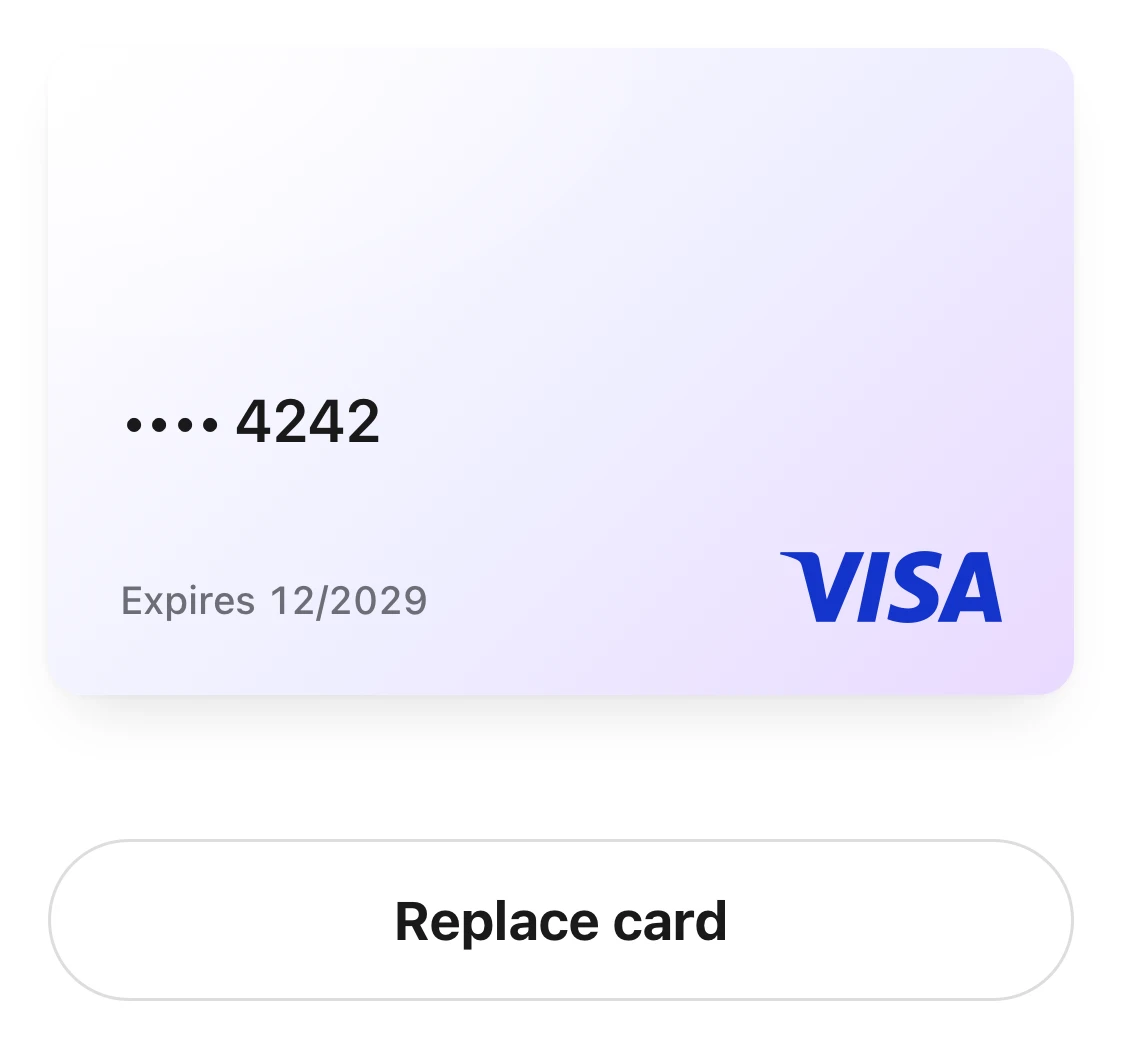
The Card page: a Visa ending in 4242 with its expiration date, and the Replace card button under it.
Steps: see and download an invoice
- In “Plan & billing”, tap “Past invoices”. Each row is one payment. The amount includes tax.
- Tap a payment to open “Invoice details”.
- Tap “Download invoice (PDF)”.
Steps: change the name and address on your invoices
- In “Plan & billing”, tap “Billing details”.
- Enter the “Billing name” and “Billing address”. Tap “Save” in the top right corner.
- Future invoices use the new name and address. Past invoices don't change.
Good to know
- Your business keeps one card on file. Every payment is charged to this card. When you replace it, the new card takes its place.
- When your card is about to expire, “Your card expires soon” appears at the top of the screen.
- When you open “Plan & billing” in the Kaila app on an iPhone or iPad, you see “To pay, open Kaila in a browser on your computer or phone.” Tap “Open in browser” and finish in Safari.
- The Android app shows “Not available in the Android app yet.” Open Kaila in a web browser on your computer or phone instead.