
How do I delete my account?
For: Owner, Manager, Front desk, Professional
In short
Tap “Delete account” in “Sign-in & security”. If you are an owner, close your businesses first. Owners, managers, front desk, and professionals can all delete their own account.
Steps
- If you are an owner, close your businesses first. Open “Account › My businesses” and tap “Close business” under each one.What's the difference between “Pause”, “Take site offline”, and “Close business”? How do I close or restore?
- Go back to “Account › Sign-in & security” and tap the red “Delete account” at the bottom.
- Read “What happens when you delete your account”.
- Type “delete account” in the box, then tap “Send code”.
- Enter the code sent to your sign-in phone, then tap the red “Delete account”.
- When you see “Account deleted”, tap “OK”.
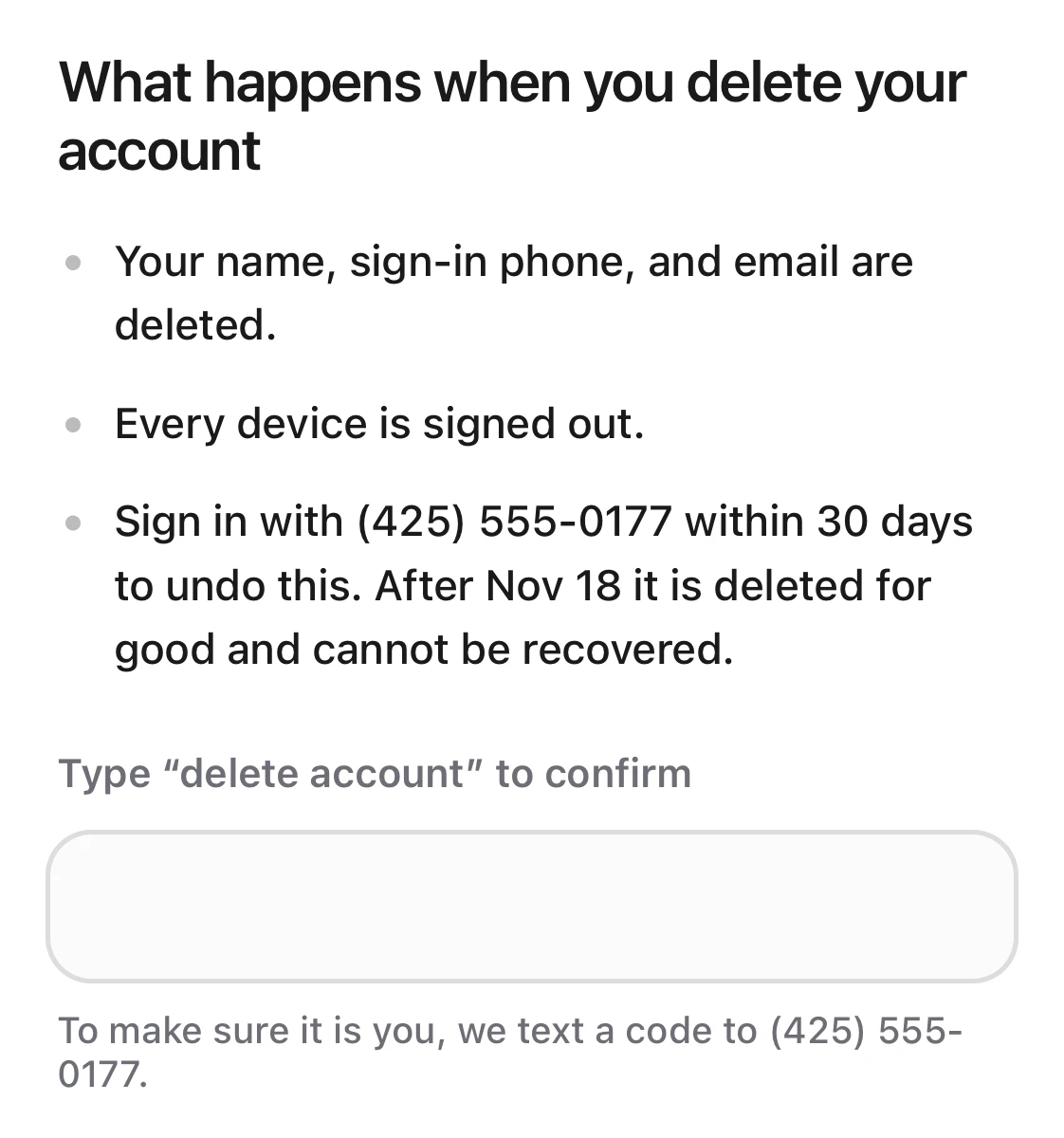
The Delete account page: three points under What happens when you delete your account, then the box to type delete account.
Good to know
- If you are an owner and a business is still open, the screen shows “Close your businesses first”. You can't delete your account yet.
- If you work at someone else's business, you don't close it. When you delete your account, you leave it automatically. “If you restore your account within 30 days, you'll still need a new invite to rejoin these businesses.”
- When you delete your account: “Your name, sign-in phone, and email are deleted.” “Every device is signed out.”
- To undo it, sign in with the same phone number within 30 days. After the date shown on the screen, the account is deleted for good and can't be recovered.
- The code works for 10 minutes.